How it works, a quick overview
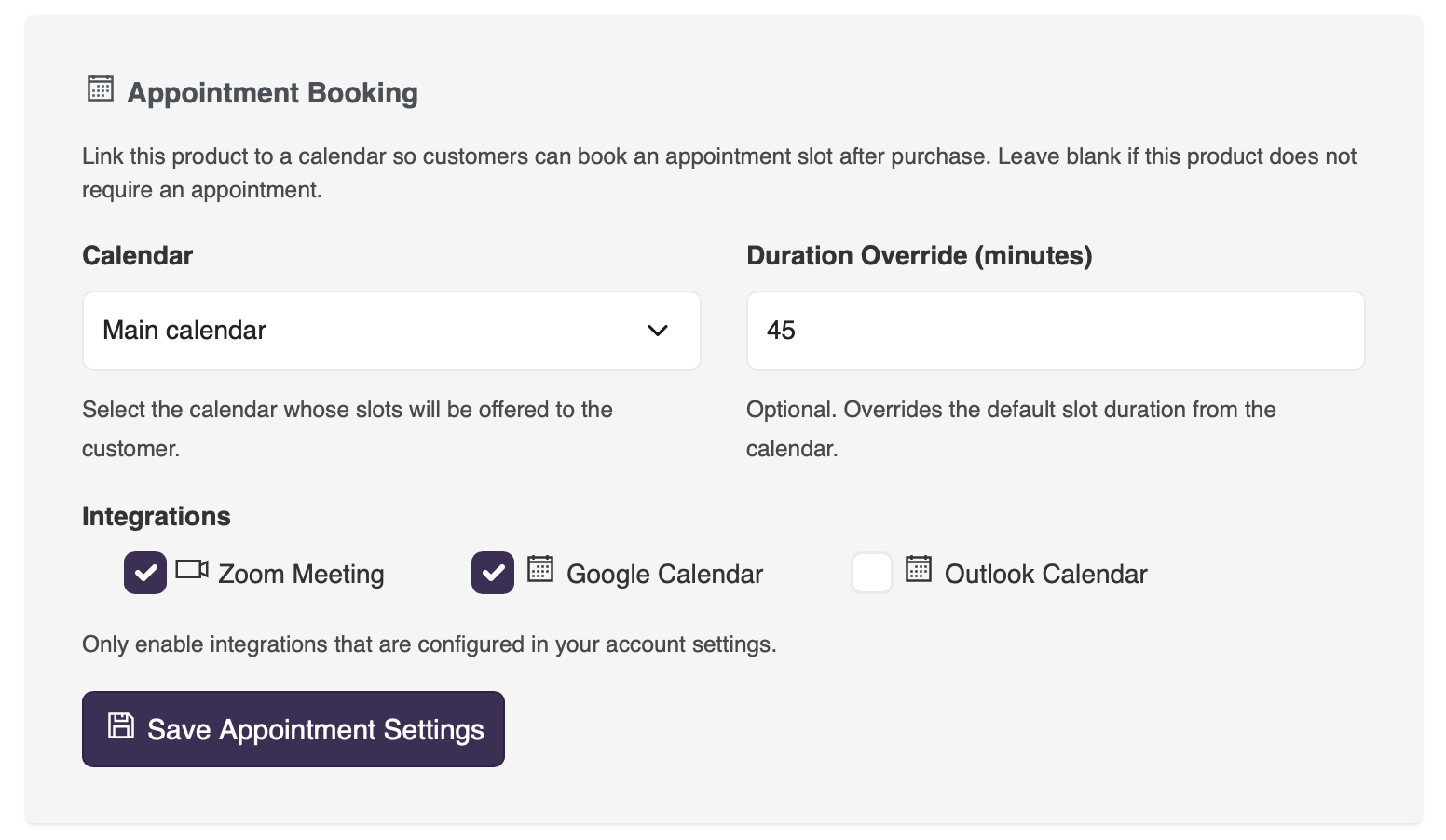
1. Link a Calendar to Your Product
In the admin, go to your product and open the Shop Settings tab. In the Appointment Booking section, select the calendar whose availability you want to offer customers. You can also set a Duration Override in minutes, this overrides the default slot duration from the calendar. Leave it blank to use the calendar's default.
2. Configure Integrations (Optional)
If your account has Google Calendar, Outlook Calendar, or Zoom connected, you can enable these integrations on the product. When a customer books a slot, MyCo will automatically:
- Create a Google Calendar event with a Google Meet link (if Google Calendar is enabled)
- Create an Outlook Calendar event (if Outlook Calendar is enabled)
- Create a Zoom meeting (if Zoom is enabled)
3. Customer Purchases the Product
The checkout experience is completely unchanged for the customer. They add the product to their cart, complete checkout, and pay as normal. No slot selection happens during checkout — this keeps the purchase flow clean and simple.
4. Book a Slot on the Thank You Page
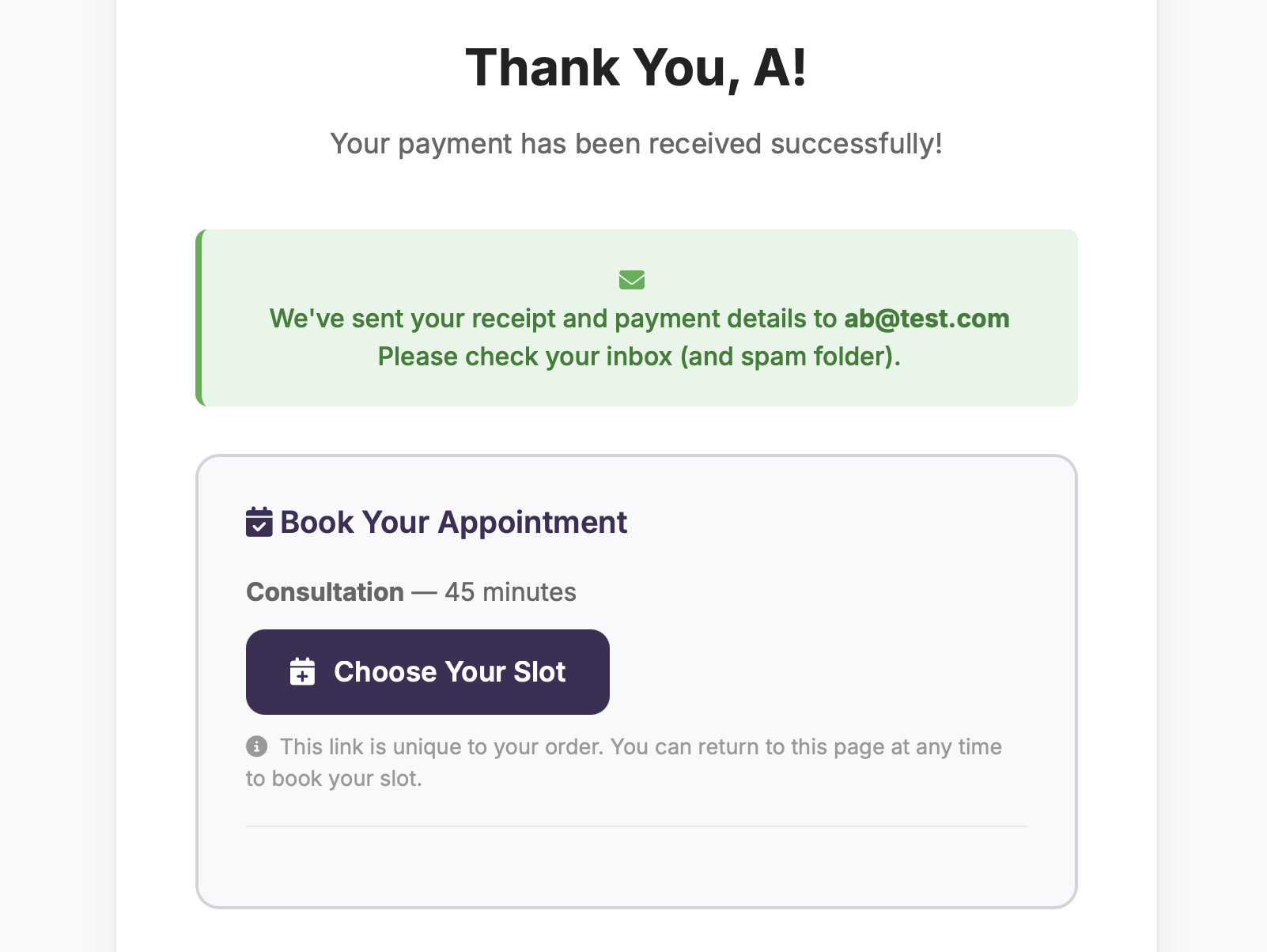
Once payment is confirmed, the thank you page automatically shows a Book Your Appointment section for any products that require an appointment. The customer clicks Choose Your Slot and is taken to the booking page.
If the customer's payment is delayedm for example, via a bank transfer, MyCo will automatically send them a booking invite email with their unique booking link as soon as payment is confirmed.
5. Choose an Appointment Slot
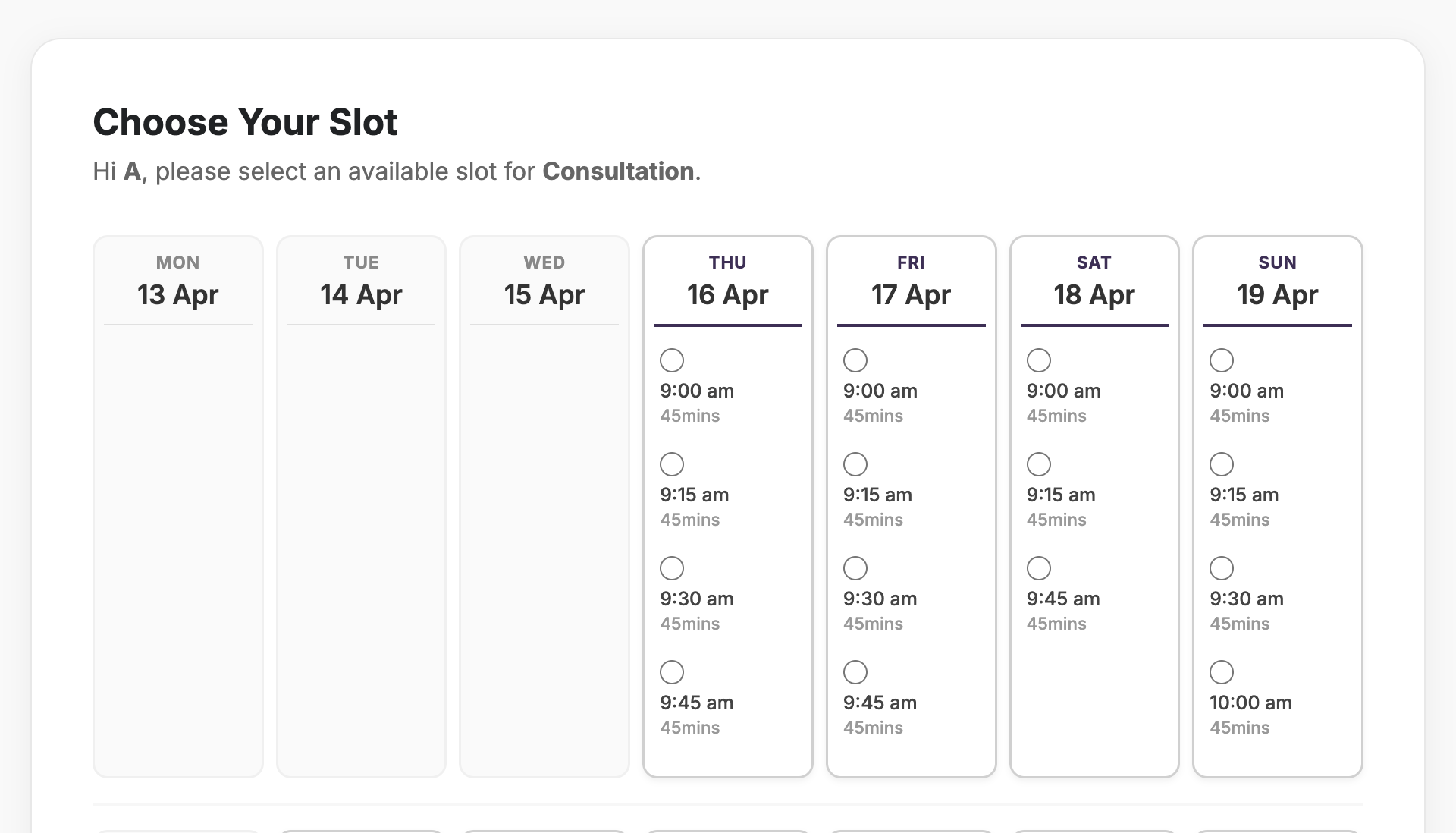
The booking page shows a weekly calendar grid with all available slots from the linked calendar. Slots are generated from the calendar's availability ranges and displayed in 15-minute intervals. Days with no availability are shown as empty. The customer simply selects their preferred slot and clicks Confirm Appointment.
MyCo automatically excludes:
- Slots that are already booked by other customers
- Slots that clash with existing events in your connected Google or Outlook calendar
- Past time slots
6. Booking is Confirmed
Once the customer confirms their slot, MyCo:
- Records the booking in your MyCo calendar
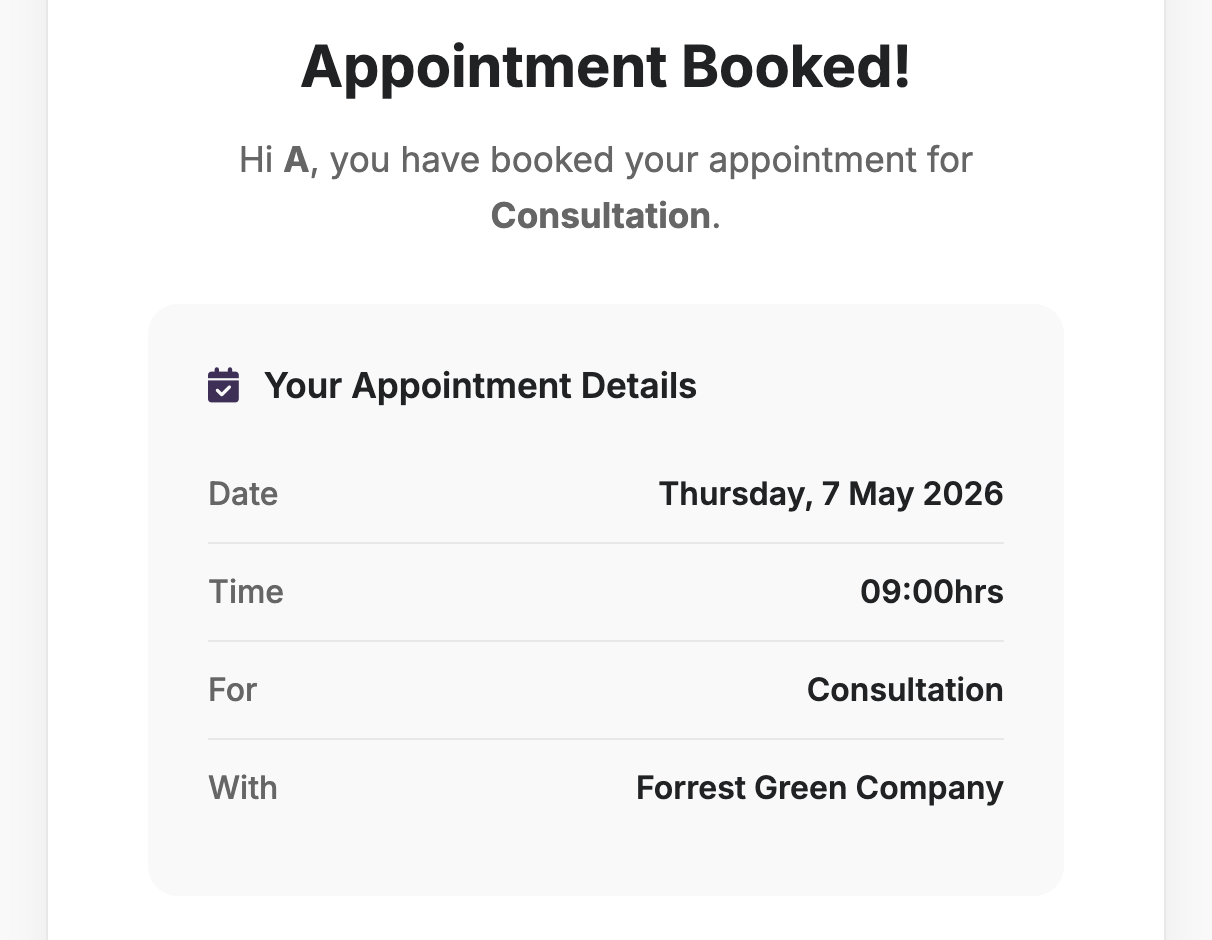
- Sends the customer a confirmation email with the date, time, duration, and meeting details (Google Meet or Zoom link if applicable)
- Creates the Google Calendar or Outlook event in your connected account
- Sends a calendar invite (iCal) to the customer
- Copies the confirmation email to your account email address
7. Already Booked State
The booking link is unique to each order line item and can only be used once. If a customer tries to use the link again after booking, they are shown their existing appointment details, date, time, and organisation, with a message to contact you if they need to reschedule.
8. View the Booking in MyCo
All bookings made through the store appear in your MyCo calendar alongside bookings made through forms. You can view them from the calendar or from the contact's record.
Store Appointment Booking : sell your time, let MyCo handle the scheduling