The calendar in MyCo brings together everything in your business that has a date attached to it: appointments, tasks, meetings, milestones, and time blocked off as out of office. If it has a date, it shows up on your calendar.
On top of the calendar itself, MyCo gives you two separate ways to let customers book time with you: Quick Book, a standalone shareable booking link (the recommended option for most businesses), and form based appointment booking, where appointment selection is added as a question inside a longer form. This article covers both, along with how the underlying calendar setup works.
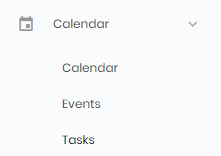
Image: The Calendar menu
What is covered in this article
- The Master Calendar, where all your dated items live
- How calendars work behind the scenes: setting up availability, durations, and one off slots
- Quick Book: your shareable public booking link
- Booking multiple sessions in one go, and paying for them
- Using more than one calendar, and whether bookings on different calendars can overlap
- Form based appointment booking, the older method
- Connecting Google Calendar, Outlook, and Zoom
- Frequently asked questions
The Master Calendar
The Master Calendar is your central view of everything happening in your business. You can open it from the Dashboard or Home page, or through the Calendar menu.
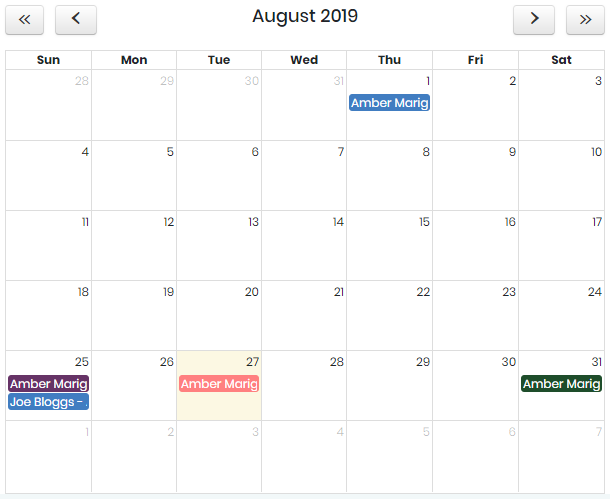
Image: The Master Calendar view
Every appointment, task, meeting, or milestone in your account appears here. As long as you have subscribed to notifications (Settings > Users > Notifications tab), you will be reminded of upcoming items so nothing important is missed.
You can also add a calendar item directly to a contact or customer record while viewing their details, shown below.
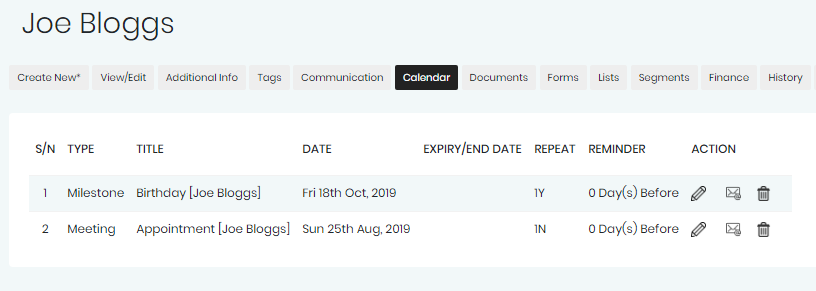
Image: A contact's calendar
How calendars work behind the scenes
Before anyone can book a slot with you, whether through Quick Book or a form, MyCo needs to know when you are available. This is set up under Settings > Calendar Options.
Calendars
A calendar in MyCo is a named container for your availability. Most businesses only need one calendar, but you can create more than one if different people, services, or locations need their own separate set of available times. For example, you might have a calendar called Morning Sessions and another called Evening Sessions, or one calendar per team member.
Every account starts with a default calendar. You can rename it, and you can add as many additional calendars as you need.
Weekly availability
For each calendar, you set up a weekly pattern of availability: which days of the week you are open, what time you start, what time you end, and how long each slot should last. Once saved, this pattern repeats automatically every week without you needing to set it up again.
One off slots
Alongside your regular weekly pattern, you can add one off slots for a specific date or date range. This is useful for a single special session, a one time event, or extending your availability for a particular week without changing your regular weekly pattern.
How long can a customer see into your calendar
You control how far in advance customers can see and book slots, from as little as one week to as much as two years ahead. This is set under Settings > Calendar Options, under calendar visibility.
Out of office
If you need to block out time so nobody can book you, for example during a holiday, you can mark that period as out of office. Any slot that falls inside an out of office period will not be shown as available, regardless of your normal weekly pattern.
Quick Book: your shareable booking link
Quick Book gives you a single link you can share anywhere, by email, on your website, in your social media bio, that lets anyone book an available slot with you instantly. There is no need to send a form or ask a question first; the customer simply opens the link, picks a date and time, and confirms.
You will find your Quick Book link and its settings under Settings > Calendar Options, in the Quick Booking section.
What the customer sees
When a customer opens your Quick Book link, they are shown a calendar. They click on a date to see the times available that day, choose a time, and enter their name, email, and mobile number to confirm. All times are automatically shown in the customer's own timezone, with yours shown for reference.
Setting a duration
You can offer a single fixed session length, for example always one hour, or you can offer a choice of durations, for example 30 minutes, 1 hour, or 2 hours, and let the customer pick which one they need. If you offer more than one duration, customers will see duration options as part of the booking screen.
Free or paid bookings
You decide whether a booking is free or requires payment. If you switch on payment for Quick Book, you can set a different price for each duration you offer. When payment is required:
- The customer's slot is held while they complete their details
- An invoice is generated and the customer is taken to your payment page
- The slot is only confirmed once payment is received
- If payment is not completed within your chosen payment window (you can set this from 1 hour up to 7 days), the slot is automatically released so somebody else can book it
Booking more than one session at once
For paid bookings, customers can add more than one slot to their basket before paying, up to three slots in a single booking. This is useful if a customer wants to book several sessions across different days or even different calendars in one go.
Each slot the customer adds is held for them for 30 minutes while they continue browsing or adding further slots. If they do not complete payment within that 30 minute window, the held slots are released automatically. Once they proceed to payment, all slots in their basket are combined into a single invoice, and confirmed together once payment is received.
If a customer adds both a free slot and a paid slot in the same session, the free slot is confirmed straight away, and they are reminded to go back to their basket to pay for the remaining paid slot or slots.
Using more than one calendar with Quick Book
If you have created more than one calendar, you can choose which of them are available through your Quick Book link, under Settings > Calendar Options. If you select more than one, customers will see a calendar picker on the booking page, letting them choose which calendar to book against before picking a date and time.
Should bookings on different calendars be allowed to overlap
If you are using more than one calendar, you can choose whether a booking on one calendar should block the same time slot on your other calendars.
- Off (the default): a booking on any one calendar blocks that time everywhere. Use this when the calendars represent the same person or the same physical space being booked in different ways, since only one booking can really happen at that time regardless of which calendar it came through.
- On: calendars are treated as fully independent, and a booking on one calendar has no effect on the others. Use this when each calendar represents a different person or resource, for example separate team members, who can each take a booking at the same time without conflict.
Form based appointment booking
Before Quick Book, the way to let customers book an appointment was to add an Appointment Booking question inside one of your forms. This method still works today and is useful when you want appointment selection to be part of a longer process, for example collecting other information from the customer at the same time as booking their slot. For most simple booking needs, Quick Book is now the quicker and easier option.
To set this up, go to Menu > Forms > Create new form to build a new form using the Form Wizard. Once your form is created, open the Form Questions tab and add a question with the type Appointment Booking. This question will pull from the same calendar and availability settings described above.
Connecting other calendars and meeting tools
You can connect external calendars and meeting tools so that bookings made through MyCo automatically appear there too, and so MyCo can check those calendars for conflicts. These are found under Settings > Calendar Options.
- Google Calendar: connecting your Google Calendar means new bookings are added there automatically, and any existing events in your Google Calendar are taken into account so you are not double booked.
- Outlook Calendar: works the same way as Google Calendar, for Outlook users.
- Zoom: connecting Zoom means a Zoom meeting link is automatically created and included for each booking, so you do not need to set one up manually.
Frequently asked questions
Can I have a different price for each session length?
Yes. When payment is switched on for Quick Book, you set a separate price for each duration you offer.
What happens if a customer does not pay in time?
Their held slot or slots are automatically released once your chosen payment window has passed, and become available for somebody else to book.
Can a customer book more than one appointment in a single booking?
Yes, up to three slots can be added to a basket and paid for together in one invoice, for paid bookings.
How far ahead can customers see my availability?
This is controlled by you under Settings > Calendar Options, and can be set anywhere from one week to two years ahead.
Do I need more than one calendar?
Only if you need to offer genuinely separate sets of availability, for example different team members or different services. Most businesses only need the one default calendar.
If I have two calendars, can someone book the same time slot on both?
This depends on your overlap setting. If overlap is off, a booking on one calendar blocks that time on every calendar. If overlap is on, each calendar is independent and the same time can be booked separately on each one.
Is Quick Book or form based booking better for me?
For most businesses, Quick Book is the simplest and quickest option, since it is a single link with nothing else to set up. Form based booking is better suited to situations where you need to collect other information from the customer alongside their appointment booking.
Will my bookings show up in my Google or Outlook calendar?
Only if you have connected that calendar under Settings > Calendar Options. Once connected, bookings sync automatically in both directions.