Staying connected to your customers is a big part of what MyCo helps you do. But sometimes, the right thing is to let go whether a customer asks to be fully removed from your records or you’re simply tidying up your database. From GDPR compliance to honouring opt-out requests, there are times when deleting a contact is necessary.
So what does it mean to delete a contact?Deleting a contact from your MyCo database permanently removes their record, ensuring they’re excluded from future emails, insights, and contact lists. It’s a key step in maintaining a clean, compliant, and up-to-date customer database.
Manually deleting a contact record from your database/contact group- Search for the contact(s) you want to delete using the Menu > Contacts > Quick Search, or from the Menu > Contacts > Any contact category
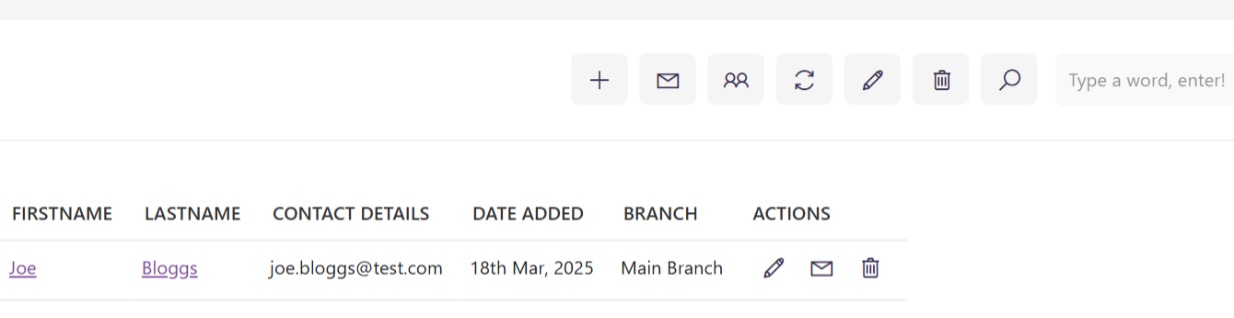
- On the displayed list of contacts, look for the delete icon, which should be visible in the 'Actions' tab. If the icon is greyed out, it is because there are contractual/financial records associated with the contact, so you won't be able to delete the contact unless the associated contracts / transactions / invoices are deleted
- When you click the delete icon, the system will ask you to confirm the deletion. If you choose to carry on with the delete, it is not reversible, and the data will be permanently deleted.
Note - There are other alternatives to deleting a contact that is no longer required. e.g. opting them out of emails, removing their email address from the system.