
Advanced Contact Search lets you find contacts in your database using multiple criterion, so you’re not limited to simple keyword searches. Whether you're trying to find people in a specific location, with a certain interest, or matching a set of custom criteria, the advanced search tool gives you customised control over your search.
Quick Search VS Advanced Search
- Quick Search is best when you're looking for a specific contact. Just type in their first name or last name, and you'll get a quick match.
- Advanced Search is suitable when you need to filter contacts using multiple conditions such as selecting a field and values or applying custom fields. It’s ideal for more detailed or segmented searches.
How does it work?
You can build your search using three elements:
Field - What do you want to search by?
Example: Country, Email, Age, etc.
Rule - How should it match?
Example: Equal to, Not equal to, Similar to, Within range
Value - What are you looking for?
Example: United Kingdom, “John”, @gmail.com, 25–35, etc.
Can I see an example?
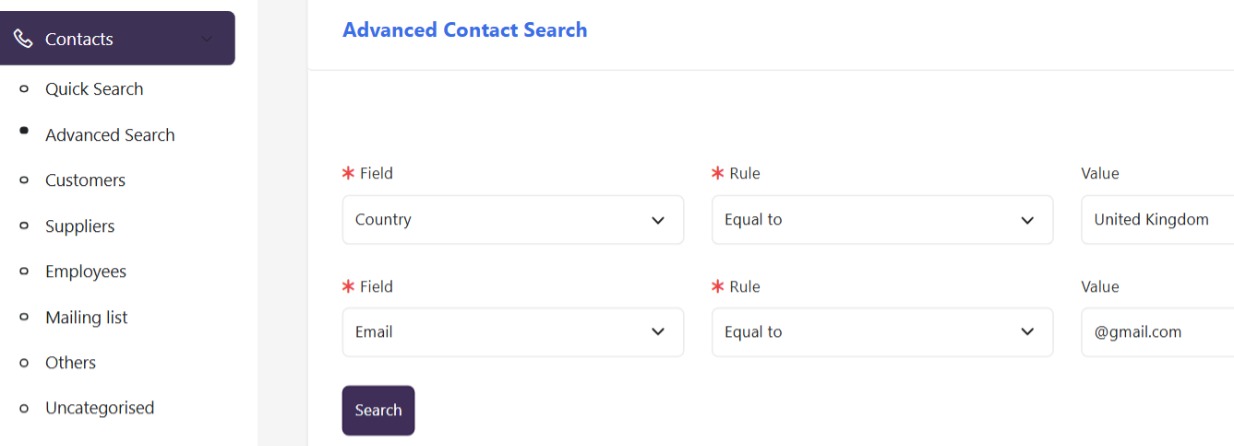
Sure! Assuming we want to locate contacts in your database with a country of “United Kingdom” and Email matching @gmail.com, then we have two criteria we need to search for
- For the first criterion, set Field to Country, Rule to Equal to, and Value to United Kingdom.
- Click ‘Add Filter’ to add additional set of filters.
- For the second criterion, set Field to Email, Rule to Similar to, and Value to @gmail.com
- Now click Search, and you're done.
Where do I find the Advanced Contact Search?
- Go to Menu > Contact > Advanced Search
- Set your filters for each search criterion
- Click Search
- Optionally, export your search results as a CSV file.