
You can access the Contacts module via Menu > Contacts.
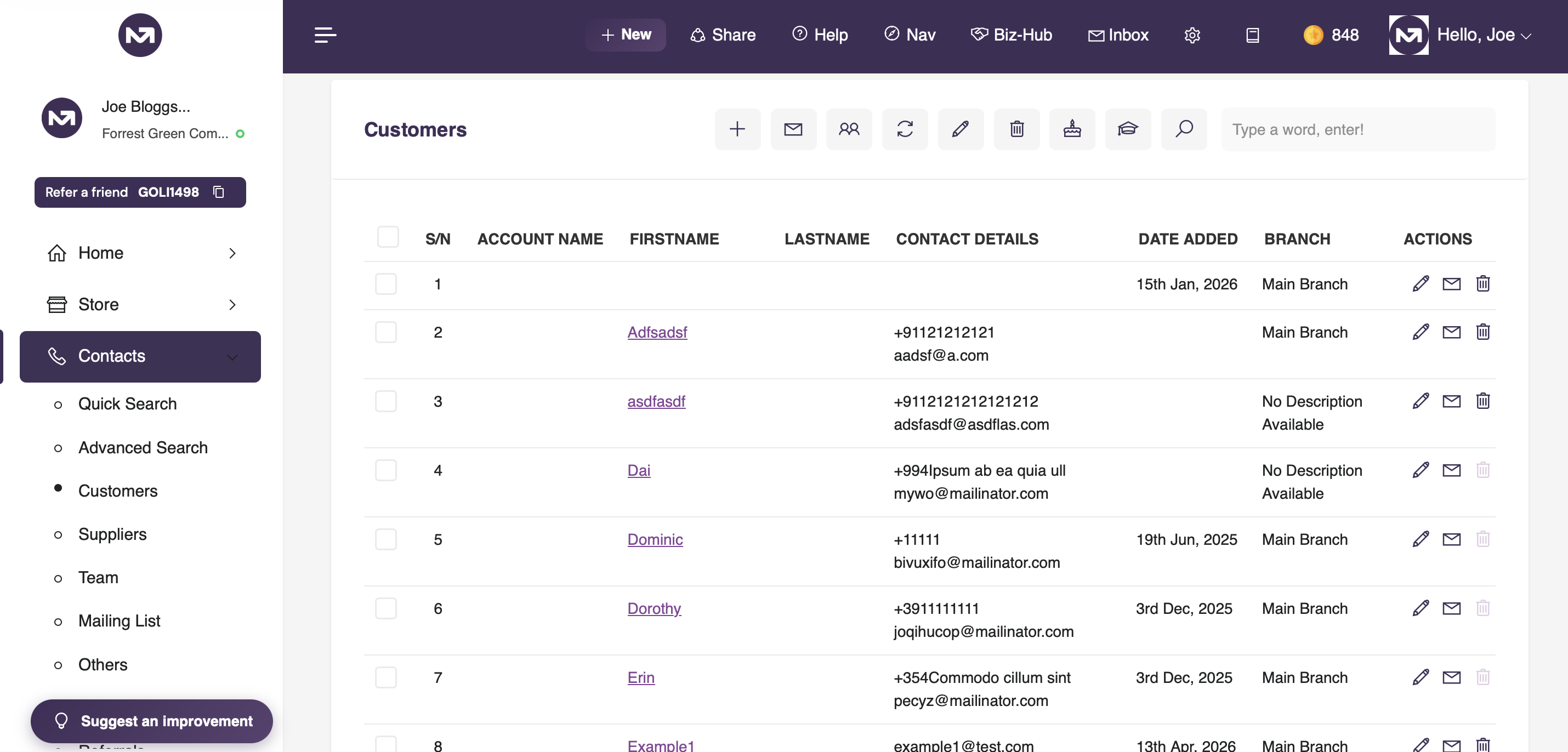
How it works, a quick overview
1. Contact Categories
MyCo organises contacts into categories so you can manage different types of people separately. The default categories are:
- Customers/Members — your main customers or members
- Suppliers — vendors or service providers
- Employees — internal staff (also managed via the HR module)
- Mailing List — contacts added for communication purposes only
- Others — any contact that does not fit the above
- Uncategorised — contacts not yet assigned a category
2. Creating a New Contact
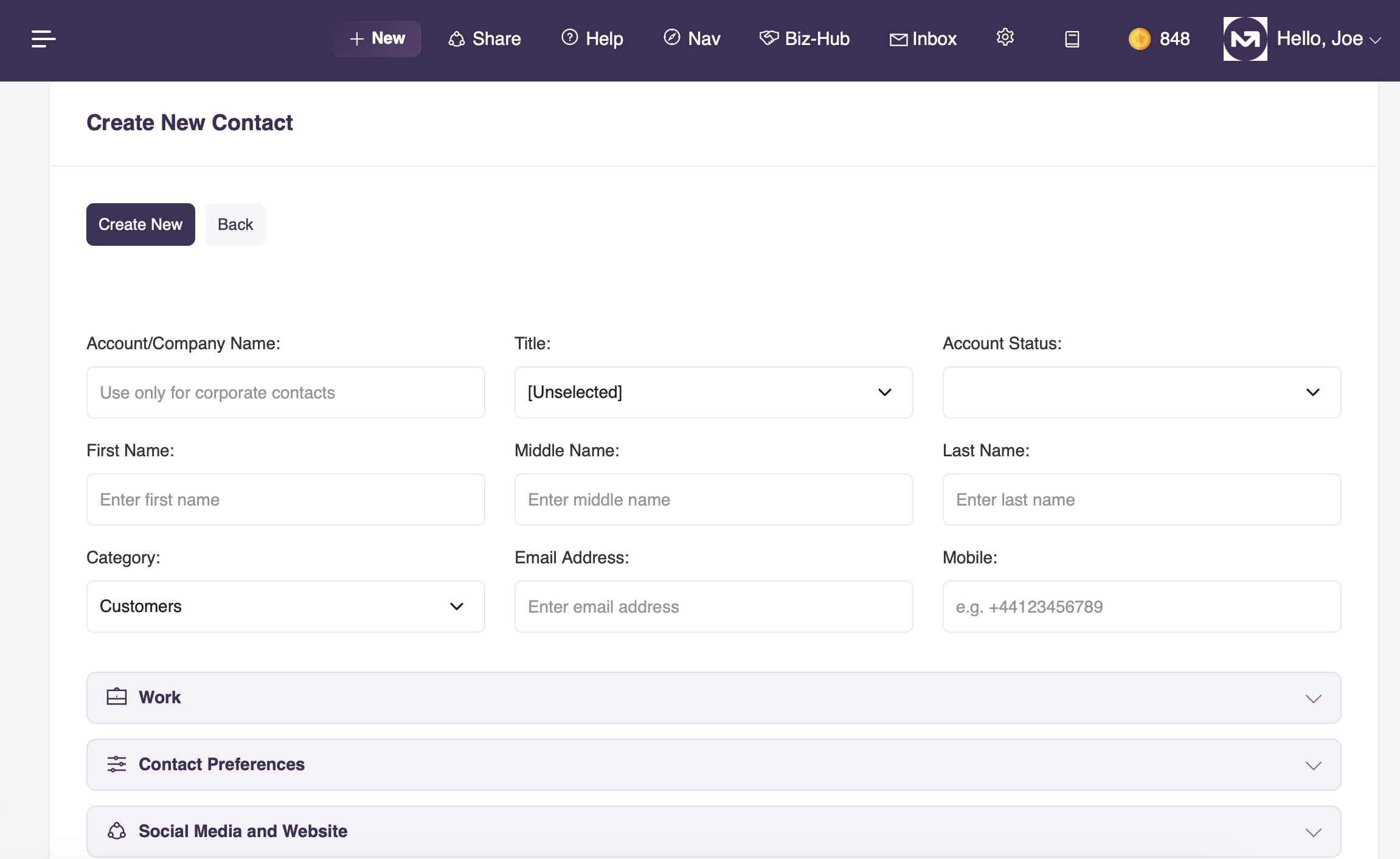
To add a contact, go to Contacts > Create New. The create form is organised into sections. The core fields — name, email, mobile, and category — are always visible at the top. Additional sections such as Work, Contact Preferences, Social Media, Address, and Other Details are collapsible, keeping the form clean while still allowing you to capture as much detail as you need.
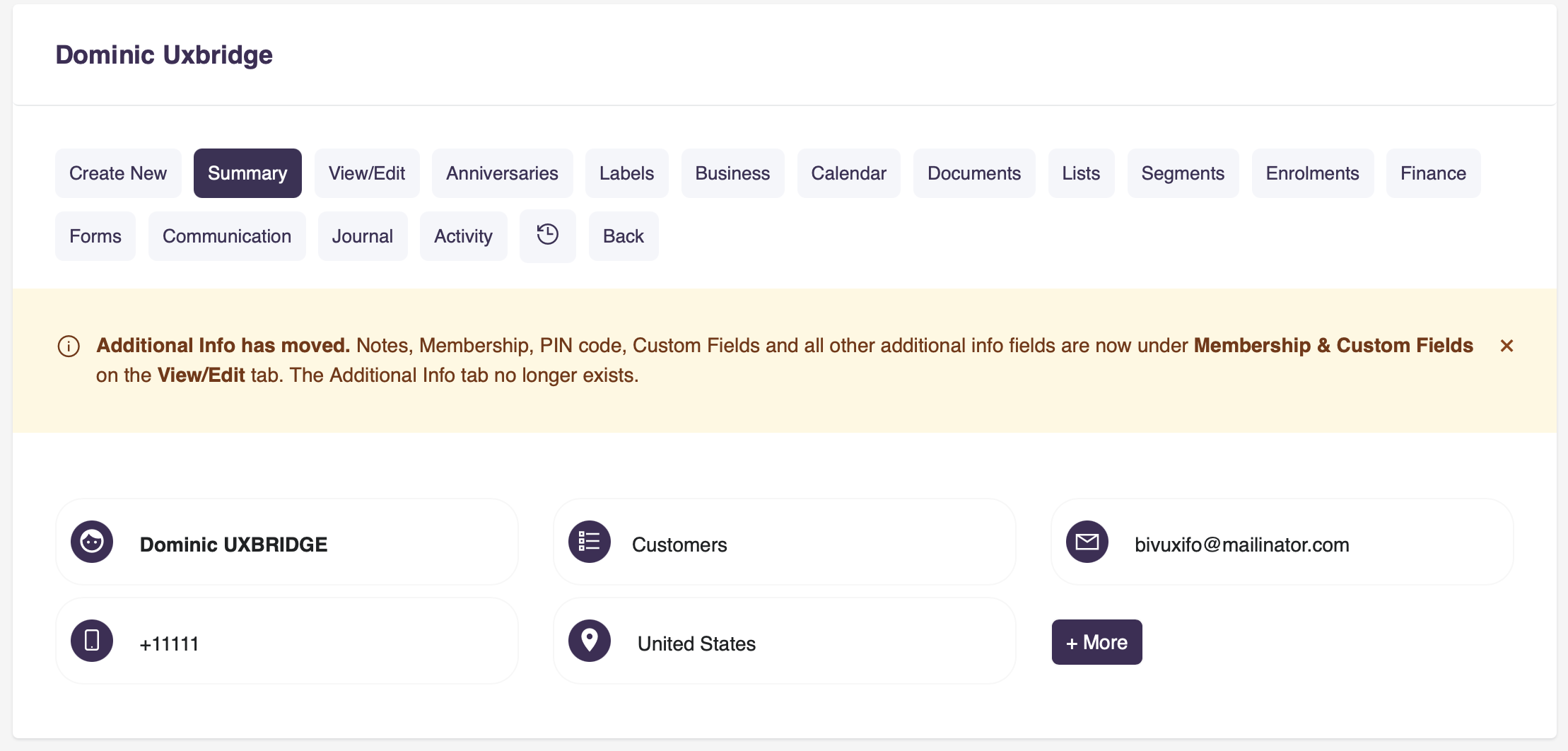
Every contact has a Summary page that gives you a quick snapshot of the most important information — name, category, email, mobile, country, membership type, and any custom field values. From the summary you can also navigate to all other areas of the contact record including Finance, Forms, Journal, Communication, and more.
4. Editing a Contact
The View/Edit tab gives you full access to all contact fields in one place. Fields are grouped into collapsible sections — sections with data already saved are automatically expanded when you open the page. This makes it easy to see at a glance which sections have been completed and which still need attention.
The Membership & Custom Fields section at the bottom of the edit page contains membership-specific information such as membership number, PIN code, service plan, membership type, start and stop year, and any custom fields your administrator has configured for your account.
MyCo supports up to 24 custom fields per account, configured by your administrator under system settings. These fields appear on the contact edit page and can be free-text or dropdown lists. They are particularly useful for capturing information specific to your industry or organisation — for example, other customer-centric data and contact preferences.
6. Account Status
Each contact can be assigned an account status — Green, Yellow, or Red — to indicate the health or priority of the relationship. This is visible on the contact summary and contact list, making it easy to spot contacts that need attention.
7. Contact Search and Filtering
The contact list supports keyword search across name, email, telephone, and other fields. You can also filter by category, status, and other criteria. The Advanced Contact Search gives you powerful filtering options to find contacts based on any combination of fields, segments, groups, or custom field values.
8. Groups and Segments
Contacts can be added to Groups manually, or placed into Segments automatically based on rules you define. Groups and segments are used throughout MyCo to target communications, restrict form visibility, set course eligibility, and more.
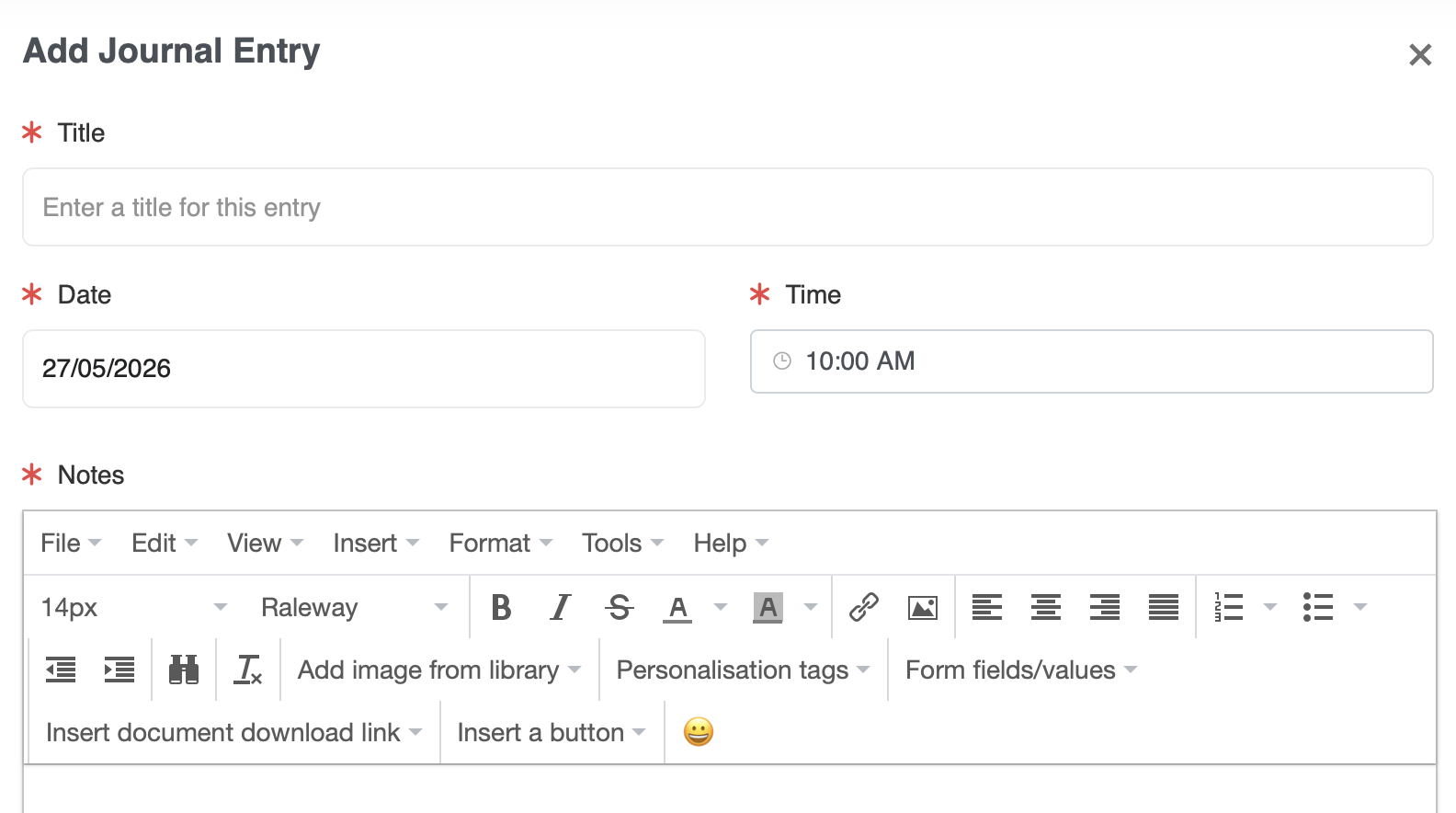
9. Contact Journal
The Journal tab on each contact allows you to log notes, calls, meetings, and any other interactions. This creates a chronological record of your relationship with the contact, visible only to your team.
10. Communication History
The Communication tab shows all emails sent to a contact from MyCo, including whether the email was opened. This gives you full visibility of what has been sent and when, without leaving the contact record.
11. Finance
The Finance tab on a contact shows all invoices, quotes, and transactions linked to that contact. You can raise a new invoice directly from this tab, keeping financial activity connected to the person it relates to.
12. Forms
The Forms tab shows all form submissions made by or on behalf of a contact. You can also launch a form directly from this tab on behalf of a contact, useful for in-person or phone-based registrations.
13. Merging Duplicate Contacts
MyCo includes a duplicate detection tool that identifies contacts who may have been entered more than once based on matching fields such as name and email. Duplicates can be reviewed and merged to keep your address book clean and accurate.
14. Importing Contacts
You can import contacts in bulk from a CSV file via Help & Support > Import. MyCo maps your columns to the correct contact fields and gives you a preview before committing the import. This is the recommended way to migrate from another system or add a large batch of contacts at once.
Key things to remember
- Every contact must belong to a category — this controls which modules and features apply to them
- Email address is not mandatory, but a contact without an email cannot receive communications from MyCo
- Mobile numbers should always be entered with the country dialling code prefix, e.g. +44 for the United Kingdom
- Custom fields are account-wide settings — changes to field names affect all contacts
- Deleting a contact permanently removes all linked data including transactions, form submissions, and journal entries — archive or reassign where possible
- The contact PIN code is used for portal login — keep it secure and do not share it publicly
- Segments update automatically as contact data changes, so a contact can move in and out of a segment over time
Contacts : the foundation of everything in MyCo — every interaction, invoice, and communication starts here