
Importing your contacts into MyCO makes it so much easier to load your contacts easily, without manually adding them individually into MyCO. If you have your contacts in a different system or spreadsheet, you can import ALL your contacts into MyCO from a CSV file.
Creating your CSV File
This section is only required if your data is currently in .XLS/XLSX or other format (asides CSV). Simply follow the instructions below to create the CSV file you will import into MyCO:
1. Open your file in Microsoft Excel
2. Replace all commas - this is because commas are used as delimiters in the CSV file. To do this, press Ctrl+H on your computer/laptop, enter the comma sign and replace with blank (i.e. nothing)
3. Save as - use the file menu and save as CSV (Comma Separated Values) file type. Be careful as there are a few variations of CSV. Choose the one that says CSV Comma Separated Values.
4. Save the file
5. Proceed with the instructions in the next section to import the data into MyCO
Import your contacts from a CSV into MyCO
Simply follow the instructions below:
1. Sign into MyCO
2. Navigate to Menu > Help & Support > Import data
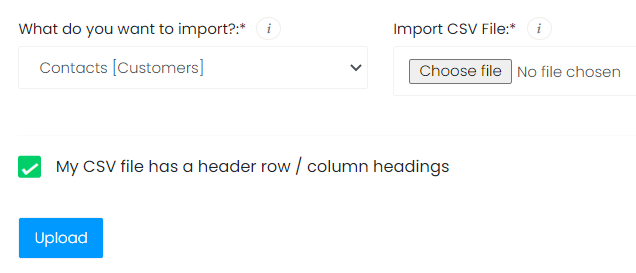
3. Confirm the category you want your contacts imported into e.g. Customers
4. Choose the CSV file you want to import from your computer
5. Check if your file includes a header / column headings
6. Tap/click the 'Upload' button
7. If successful, you will be directed to the next screen to choose the correct column headings where your data will be imported into.

e.g. Set a column to 'Firstname' if the data within that column contains the firstname of the contacts you are uploading.
8. For any columns you do not want to import, leave the column heading as 'N/A'
9. Click/tap the 'Import all records' button to complete the import process

10. You should get a message confirmation that your data has been successfully imported