
What a card costs
There is no set cost to issuing a membership card. Every card type carries its own fee, and you decide what that is. Set it to zero and the card is free. Set a price and the member is invoiced for it through your normal invoicing and payment provider, exactly as they would be for anything else you bill them for.
Identity verification (Nigeria only) is separate and entirely optional. If you switch it on for a card type, each check carries a cost, since a real lookup is performed against the national identity record. You decide who pays it. Either the applicant pays it as part of their application, or it is billed to your own account, in which case the applicant is never asked to pay anything for verification. Leave verification off and there is no verification cost at all.
So a card type can be entirely free to the member, free to you, or priced however suits you. A social club might charge a substantial annual membership fee with identity verification billed to the club. A school might issue student ID cards at no cost to anyone. A gym might sell a paid day pass with no verification at all.
How someone gets a card
There are four routes, and you can use as many of them as you like alongside each other.
They apply. Every card type has its own public application form URL. Share it however you like, on your website, in an email, as a QR code on a poster. Anyone with the link can apply.
You invite them (via the Advanced Search screen, or the Membership Cards screen). An admin sends a direct invite from the admin panel. The person receives a link to complete whatever is outstanding and nothing more, which is useful for existing contacts you already know.
A workflow invites them. An automation can send that same invite without anyone lifting a finger. Someone completes a form, reaches a certain stage, joins a group, and the invite goes out automatically.
You issue it outright (via the Advanced Search screen). Where a card type is set to approve automatically and carries no fee or verification, the card is simply issued and emailed, with no application and no steps for the member at all. This can be done by an admin or triggered by a workflow.
Members can also apply for themselves from within the member portal, where a card type is set to appear there.
What people use membership cards for
The module is deliberately general, and organisations use it in quite different ways.
A members club issues tiered cards, Black and Gold say, each with its own price, its own perks, and its own wallet credit on joining. Door staff scan a card on arrival and see the member's photo, their tier, and whether their membership is current. Spouse and child cards are linked to the main membership at no extra cost. A separate day pass card type lets non members buy access for a specific date, capped so the club never oversells a busy Saturday.
A gym or studio sells monthly and annual passes, with members opting into automatic renewal so their card never lapses. Scanning at reception records attendance against the session.
An alumni association issues free lifetime cards with identity verification to make certain each card belongs to a genuine alumnus. The card doubles as portal access, so only current members can sign in.
A church or large organisation issues ID cards to its protocol, security or volunteer teams. A scan at the gate confirms in a second whether someone genuinely serves on that team.
A school or training provider issues student ID cards showing completed courses when scanned, so a certificate no longer needs to be produced separately.
A retailer or trade body attaches a storewide discount to a card type. Members enter their card reference at checkout the same way they would a discount code, and it applies for as long as their card stays active.
1. Set up your card types
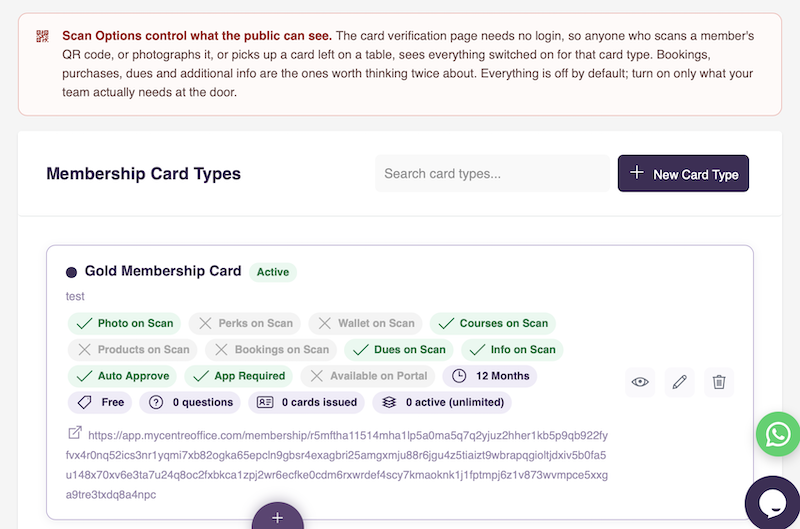
Before any cards can be issued, an admin configures at least one card type from Settings > Business Rules > Membership Card Settings. Each card type has its own name (e.g. Gold Member Card, Student Pass, Day Pass), brand colour, fee, expiry rule and settings. You can create as many as your organisation needs. Each one gets its own public application form URL, its own custom questions, and its own approval, payment and verification rules. A member can hold one active card of each type at the same time.
2. Card type settings
For each card type you control whether identity verification is required, whether cards are approved automatically once verification passes or held for manual review, whether an application form must be completed first, and how the card expires. You can write instructions that appear at the top of that type's application form, set a sort order, and decide whether members can apply for it themselves from the member portal.
There are three expiry rules. A fixed 12 months, a custom number of days that you set, or matched to the member's own ID card expiry date capped at 12 months, whichever comes first. The custom duration option is what makes short passes possible, from a single day upwards.
3. Fees and payment in detail
The membership fee is raised as a normal invoice, so it appears alongside every other invoice you raise, is paid through your usual payment provider, and shows up in your reporting like any other income.
The verification fee, where verification is switched on, is handled separately from the membership fee, and its billing is set per card type. Billing it to your own account is the right choice where you want the member experience to feel free, or where you are absorbing the cost as part of a larger membership fee they are already paying.
A card is only issued once both gates are clear: identity verification has passed or was never required, and the membership fee invoice is paid or was never raised.
4. The public application form
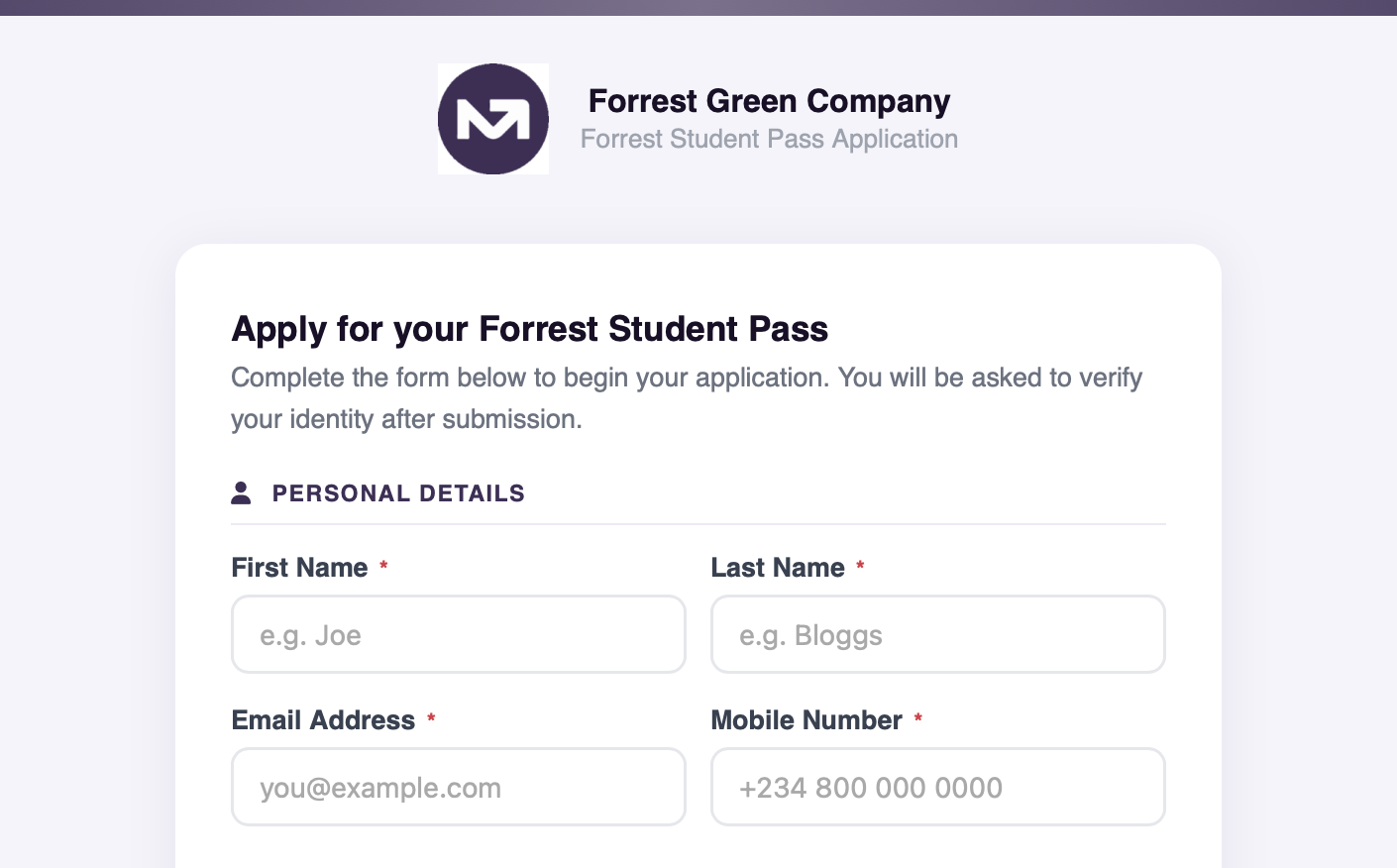
The form is branded to your organisation, showing your logo, your brand colour and the name of the card type. Applicants provide their name, email and mobile number. Their country is worked out automatically rather than being asked for, so the form stays short.
You can add custom questions specific to each card type from within the card type settings. Question types include short text, single choice, multi choice, date, date of birth, birthday, file upload and profile photo. Questions can be required or optional. File uploads are stored securely against the contact record, and a profile photo supplied here becomes the face on the member's card.
5. Start dates and day passes
Some card types are bought in advance for a particular date rather than starting immediately. Switch on Ask for a start date and the applicant chooses when their membership begins, up to 90 days ahead. The expiry is then counted from that date, so a one day pass bought a fortnight early is still a one day pass on the day it is actually for.
A card bought this way is issued and downloadable straight away, but will not scan as valid until its start date arrives. Scanning it early gives a clear "not yet valid" result showing the date it becomes active, which is deliberately distinct from an expired card.
You can also cap how many cards may share the same start date. Set Places per start date and applicants who choose a date that is already full are asked to pick another one. Leave it at zero for no limit.
6. Identity verification (Nigeria only)
Where verification is switched on, the applicant completes it using either their BVN or their NIN. The check compares first name, last name, date of birth and, where a selfie is supplied, the photo itself against the record held by the identity provider. Every result is recorded against the card and shown to admins in the review screen, field by field.
Applicants who have neither a BVN nor a NIN, for example someone who is not a Nigerian citizen, can say so. Instead of an automatic check they upload documentary evidence such as a passport, along with their date of birth and a photo, and the application goes to an admin for manual review. Evidence is required in this case, since no automatic check will run.
Identity belongs to the person rather than to one card. If an applicant has already passed verification for any card under your account, the result carries across and they are not asked to prove who they are again, nor charged a second verification fee.
7. Admin review
All applications appear under Portal Menu > Membership Cards. Each row shows the applicant's name, reference, card type, identity status, application status, expiry date and the date applied, with filters by status and card type. A red marker flags any card with an outstanding invoice.
Opening an application shows the full detail: the applicant's photo, the match result for each field checked, any uploaded identity evidence, the custom question answers, linked cards, and both the membership fee and renewal invoices with their payment status.
The approve button adapts to what actually happened. Where no verification was attempted, an admin can approve directly. Where verification was attempted but did not fully pass, the admin is shown an attestation warning making clear they are personally vouching for the applicant, and that decision is recorded against their account. Where verification passed and the invoice is paid, the card is normally issued automatically without any admin action.
8. Card issuance
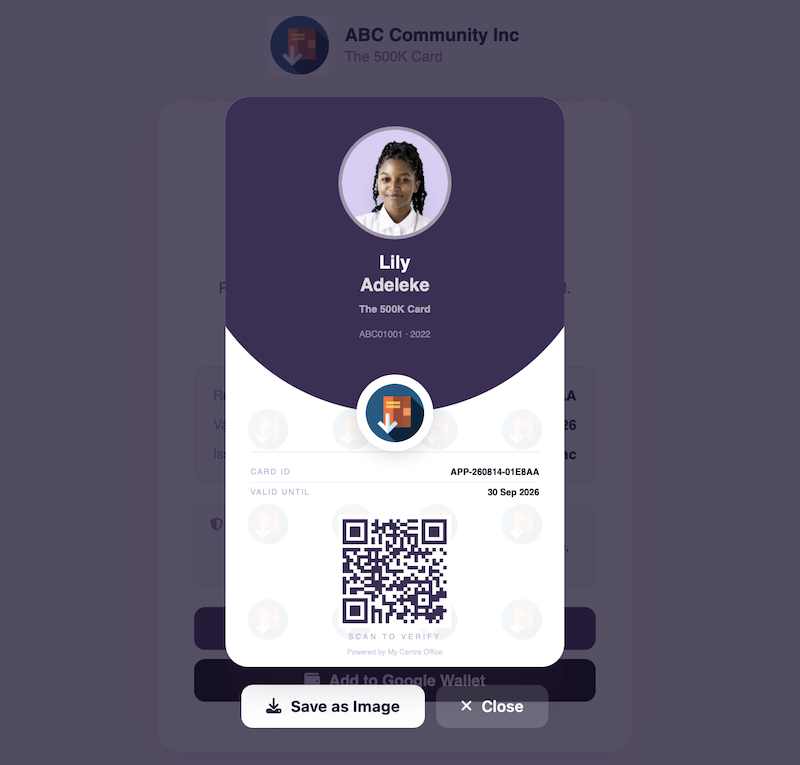
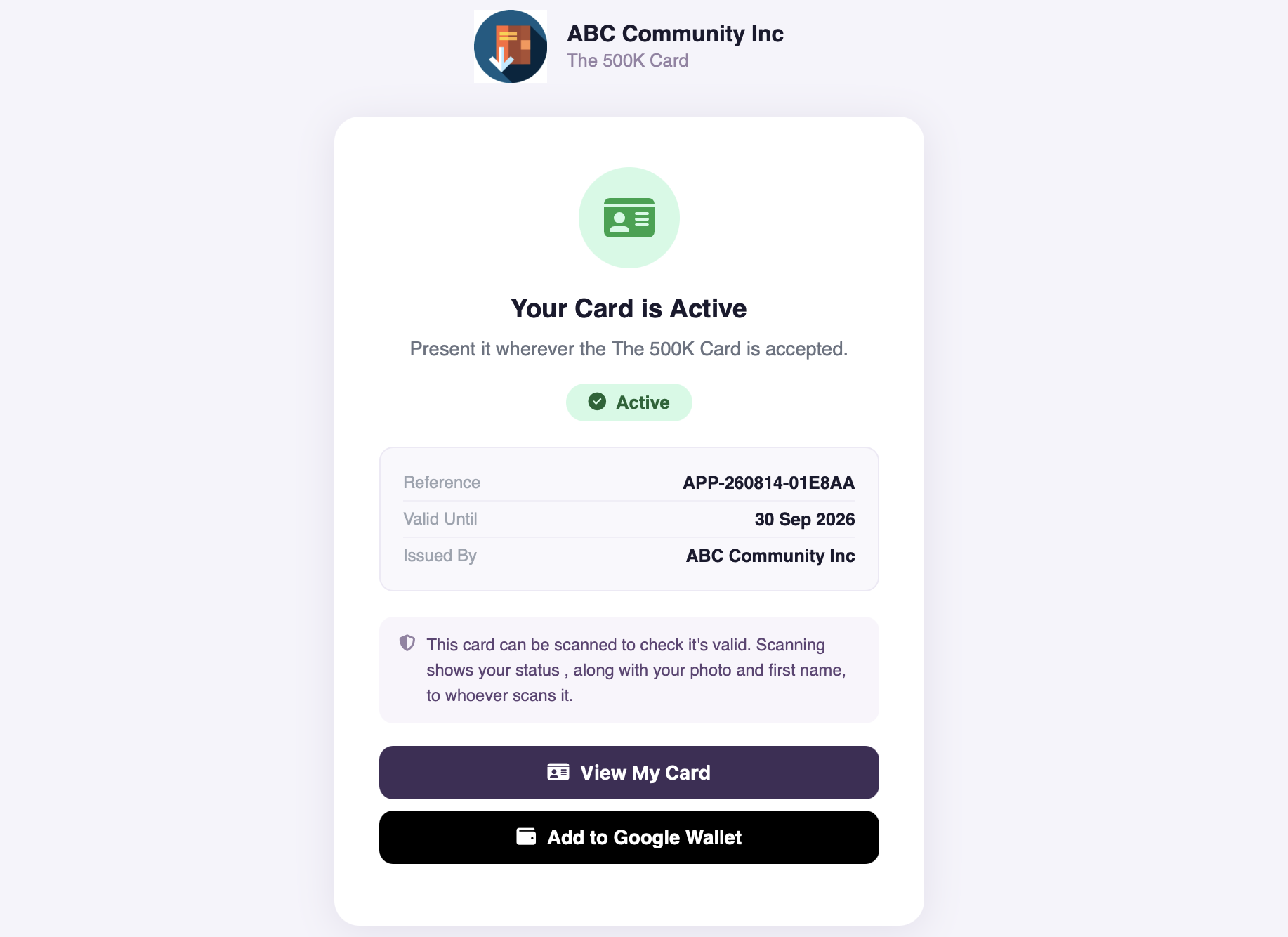
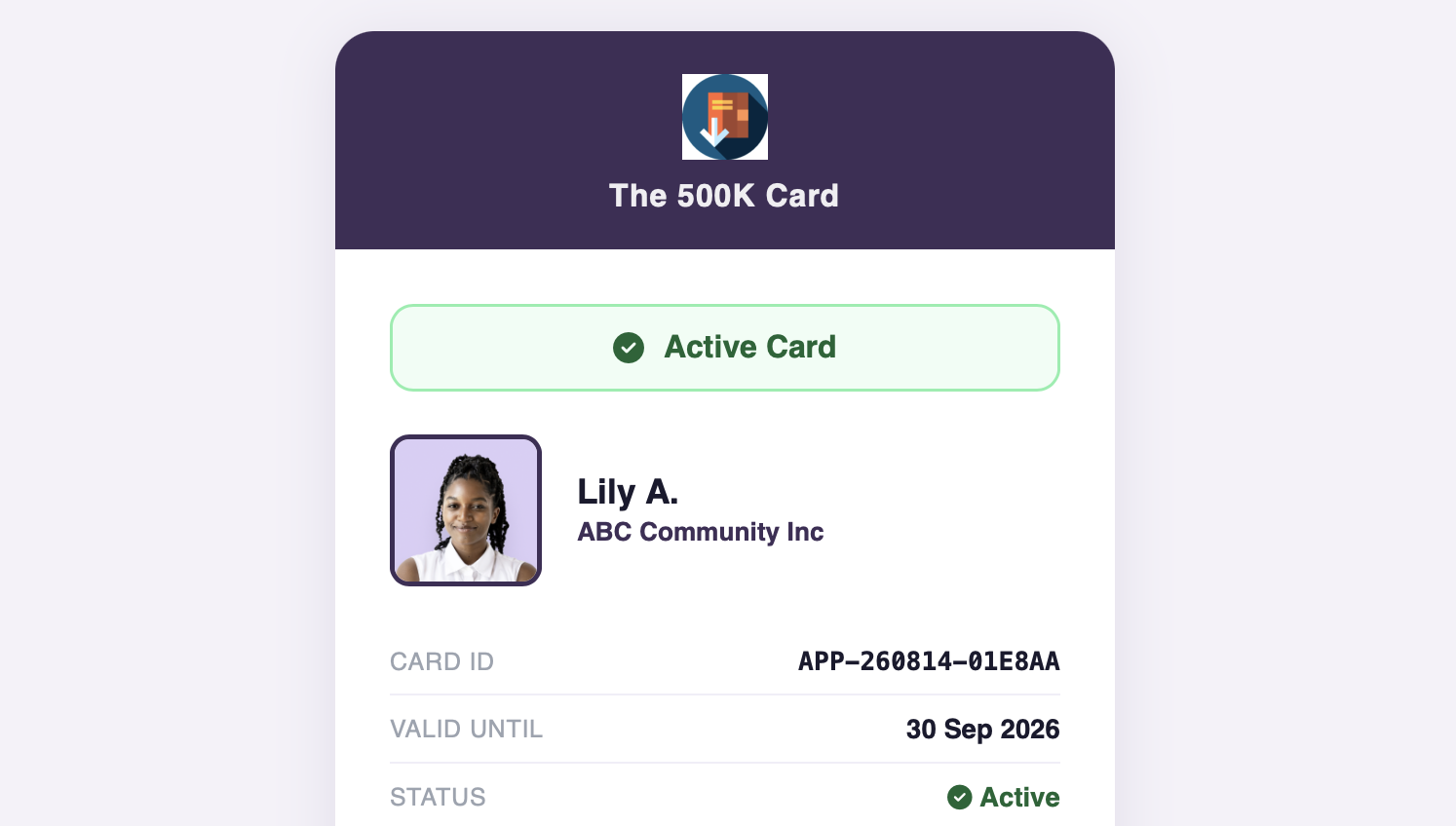
Once approved, the card is issued and emailed to the member. It is generated as a PDF carrying the member's photo, name, card reference, expiry date, your logo and a scannable QR code. The email links to a card status page where the member can download the PDF, add the card to Google Wallet on Android, or add it to Apple Wallet on iPhone. Both wallet passes are branded to your organisation and show the member's name, card ID, card type and valid until date.
9. QR verification and scan options
Every card carries a QR code linking to a public verification page. Scanning it shows the issuing organisation, card type, card reference, expiry date and a clear Active, Expired or Not Yet Valid status. No login is needed and the page is designed to be read at a glance. The URL behind the code is generated from a 256 character secure code and is not guessable.
What else appears on that page is entirely up to you, controlled per card type by the Scan Options settings. You can choose to show the cardholder's photo, any perks they hold and allow those to be redeemed on the spot, their wallet balance, courses they have completed, products they have bought from your store, their upcoming confirmed bookings, their dues status, and selected custom fields. Everything is off by default.
Where the photo is shown, only the member's first name and last initial appear alongside it. This page is public and unauthenticated, so the full surname is deliberately never displayed. Everything beyond the basic status is shown only for a card that is genuinely current.
10. Linked cards
An approved cardholder can have cards linked to theirs for a spouse, a child, or another relationship, without those people paying separately. You set how many of each relationship a single card may support, and setting any of them to zero disables that relationship entirely.
Each linked person receives their own invite to complete their details and gets their own card, with the relationship shown on it so a spouse card is visually distinct at the door. Scanning a linked card also shows whether the household membership behind it is still current.
Linked cards ride on the main membership for renewal, but they are independent in every other respect. Cancelling the main card does not cancel them, because the money already paid covered their period too.
11. Capacity limits
A card type can cap how many cards may be active at once. Once the limit is reached the card type is marked as Full throughout the admin panel, and issuance is blocked until a place frees up. Leave it blank for no limit. This is separate from the places per start date cap described above, which applies to a single day rather than to the card type overall.
12. Wallet credit and store discounts
A card type can grant wallet credit when a member joins, when they renew, or both, with a different amount for each. Credit lands in the member's wallet and can be spent on bookings, store purchases and anything else the wallet covers. Linked cards do not earn credit, since only the main holder pays.
You can also attach a store discount to a card type. Members with an active card enter their card reference at store checkout in the same way they would enter a discount code, and it applies storewide for as long as their card stays active. Expired cards never qualify.
13. Renewal
Card types can allow renewal or require a fresh application each time. Where renewal is allowed, members are sent a reminder as their expiry approaches, at a number of days ahead that you set. Clicking through generates a renewal invoice at today's price rather than whatever the price was when the reminder went out. Free card types simply extend without an invoice.
There is a grace period after expiry, which you also set. Renew within it and the membership continues. Leave it longer than that and the member is treated as a fresh applicant, going through the full process again including identity verification.
Members paying by card through Paystack can opt in to automatic renewal. Their saved card is then charged when the membership falls due, with an email beforehand telling them it is going to happen and one afterwards confirming it did. If a charge fails, automatic renewal switches itself off and the member is emailed an invoice to pay manually, so nothing is retried behind their back.
Members can turn automatic renewal on and off themselves at any time from the Settings page of the member portal, where they can also see the exact date their card is due to be charged. Admins can see whether a member is on automatic renewal and switch it off on their behalf, but cannot switch it on for them, since only the member can authorise their own card.
14. Cancelling a card
An admin can cancel a card at any time, giving a reason that is recorded against it. Cancelling ends access immediately, switches off any automatic renewal, and stops the card scanning as valid from that moment. Linked cards are not affected and remain valid until their own expiry.
15. Managing applications
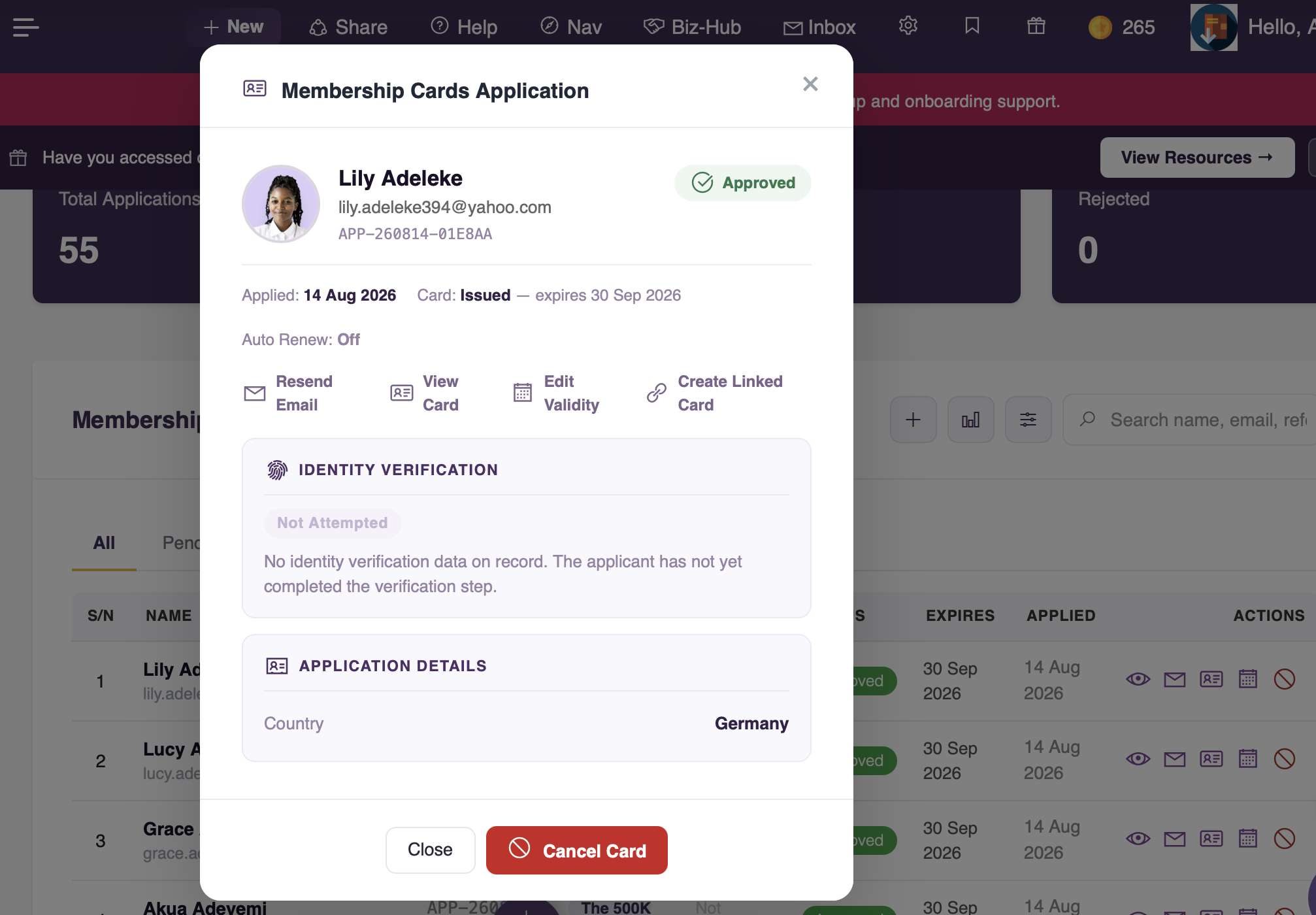
Admins can approve, reject, resend emails, adjust validity dates and cancel from either the application list or the review screen. The resend email is context aware. If the card has been issued it resends the card ready notification. If verification was attempted and failed it prompts the applicant to try again with a direct link. If nothing has been attempted it sends a nudge to complete the process. Rejecting requires a reason, which is stored and shown on subsequent views.
Validity dates can be edited directly. Extending a date is the obvious use, but setting it to today or earlier also works as an immediate deactivation without cancelling the card outright.
16. Invites and workflows
Invites can be sent by an admin from the admin panel, or fired automatically from a workflow so that reaching a particular stage results in a membership card invite without anyone having to remember. The same applies to linked cards, which can be created for a spouse or child on an existing approved card.
If you want the application form to be a compulsory step for a particular card type, switch on Require application form and anyone reaching the card flow without an application on record is redirected to it automatically.
17. The member portal
Where a card type is set to show on the portal, members can apply for it themselves from the portal Settings page. From the same page they can see every card they hold with its status and expiry, download it or add it to their wallet, update the photo that appears on it, and manage automatic renewal.
You can also require an active membership card for portal access altogether, in which case members whose cards have lapsed are asked to renew before they can sign in.
18. Check in
Member cards can be scanned to record attendance at an event. Staff pick the event, scan the card, and attendance is recorded against that member. Scanning the same card twice shows when they were first checked in rather than recording a duplicate.
19. Insights
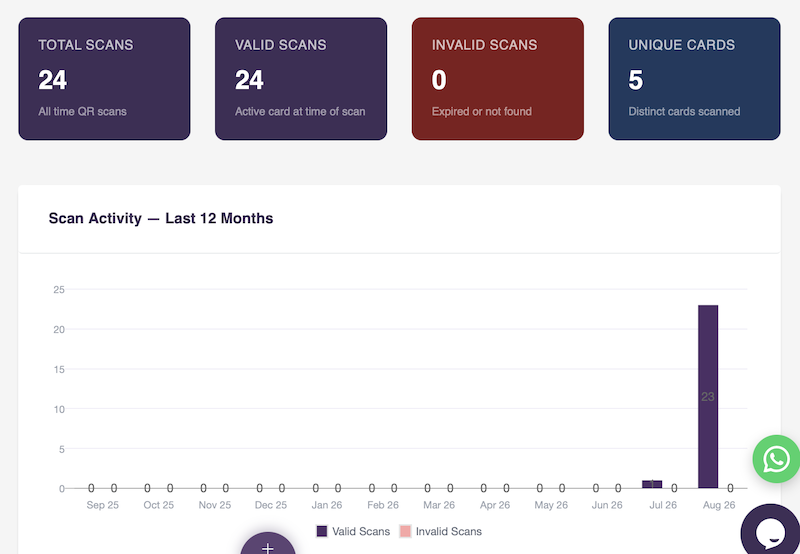
The Insights page shows scan activity across all card types or filtered to one. Headline figures cover total scans, valid scans, invalid scans and the number of distinct cards scanned, with a monthly trend across the last 12 months. A breakdown table shows each member's scan history, card type, status, expiry date and the time of their last scan.
Membership Cards : verified identity, digital convenience, trusted by your members