Part 1: Accessing the Portal
1. The Portal Link
Your organisation will share a portal link with you by email or on their website. This is the address you use to access the portal every time. You can bookmark it in your browser for easy access. Some organisations use a custom address such as luaa.portal.mycentreoffice.com, which works in exactly the same way.
2. Logging In
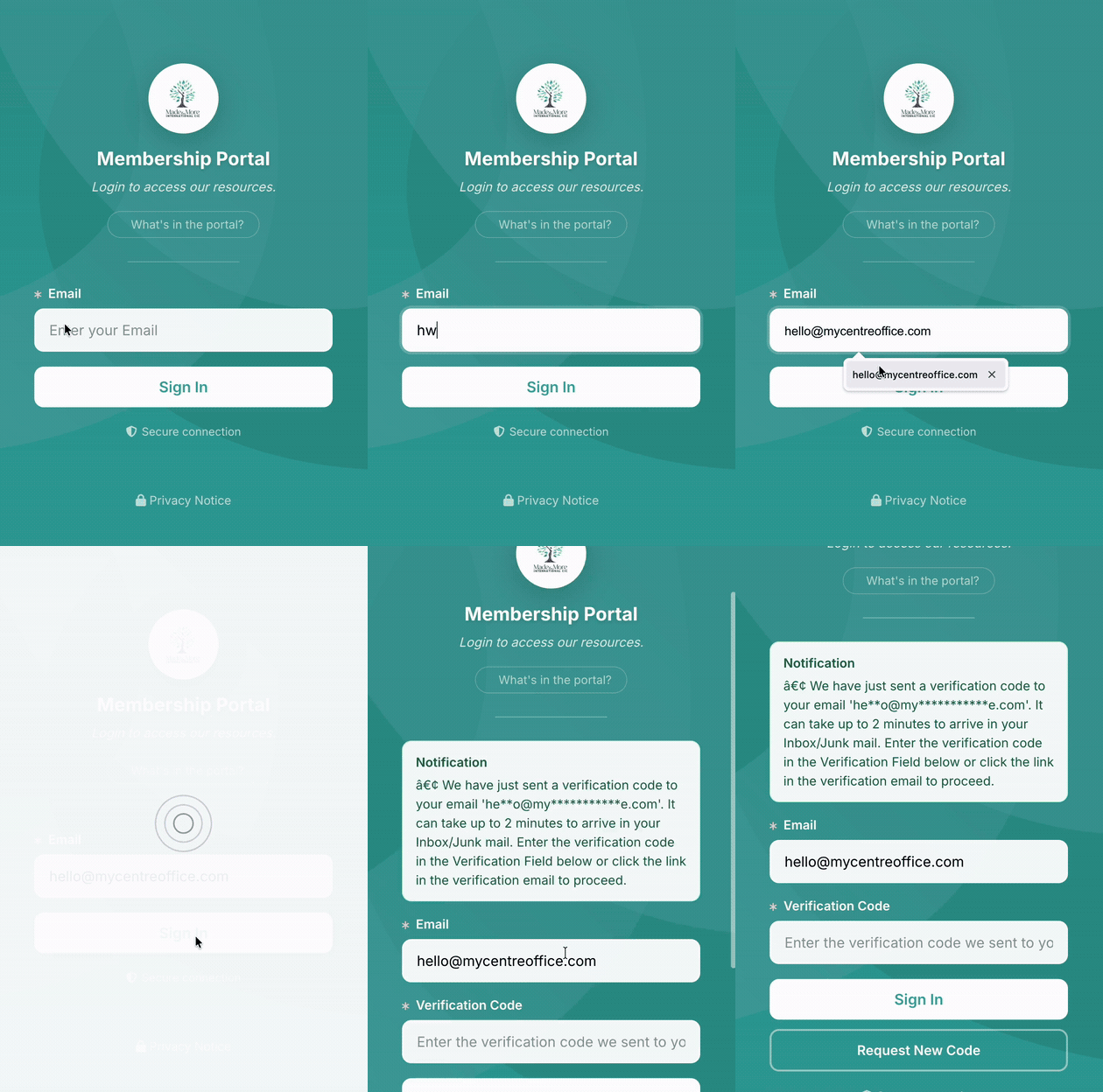
You log in using your email address. Depending on what your organisation has configured, you will then either:
• Enter your PIN, a four digit code assigned to you when your account was created and included in your welcome message. You can update your PIN from inside the portal at any time.
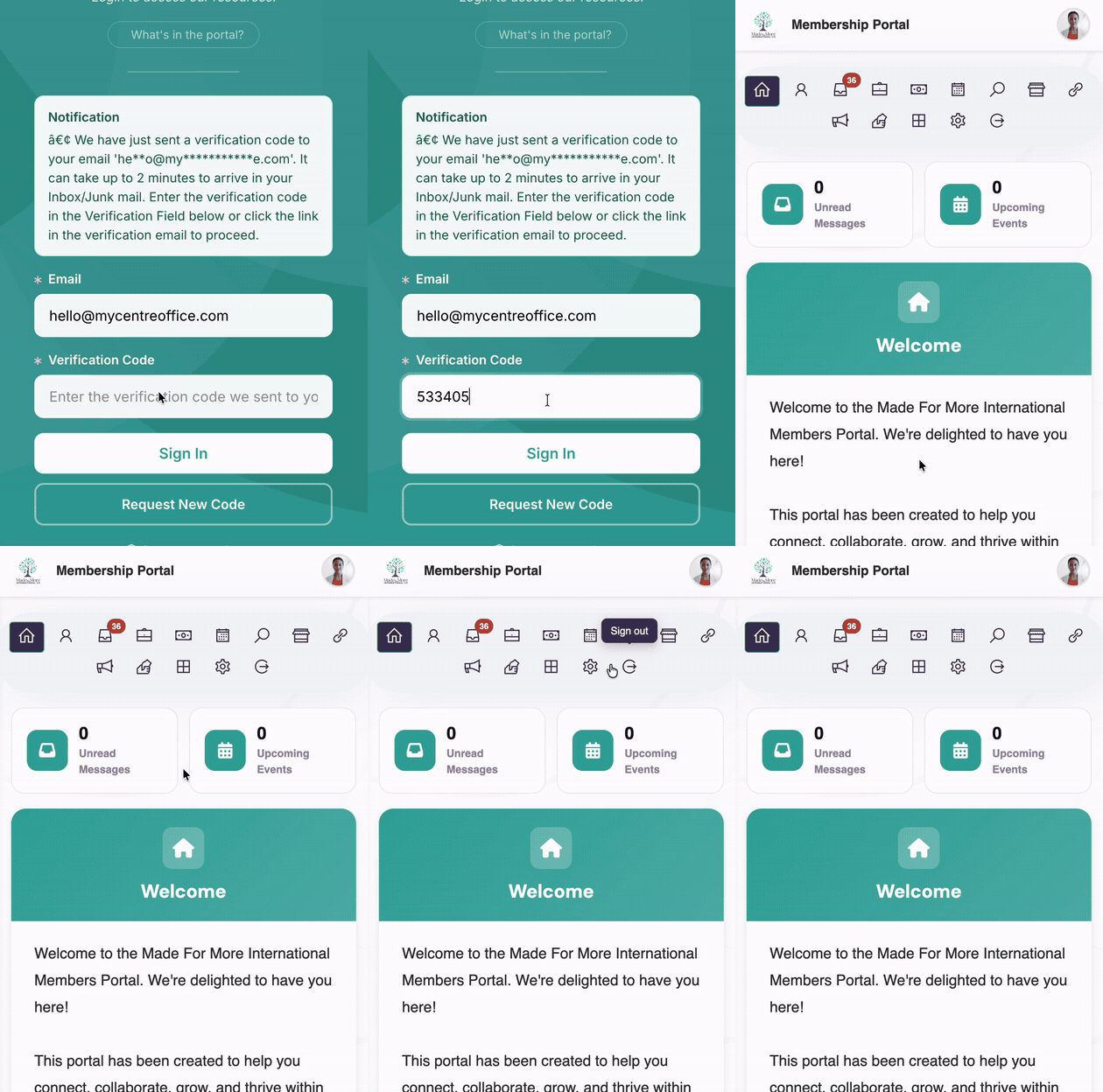
• Enter a one time code (OTP). MyCo sends a temporary code to your email address each time you log in. You enter the code to get in. No PIN is required.
Your organisation chooses which login method applies, so you will see the appropriate option on the login screen. If you are using PIN login and have forgotten your PIN, use the one time code option on the login screen to get in, then update your PIN once inside.
3. Your Data
Everything in the portal is personal to you. You can only see your own information. No other member's data is ever visible to you.
Part 2: Portal Sections
4. Home
The home screen displays your organisation's welcome message, any active announcements, and important reminders from the system. It is the first thing you see when you log in.
5. My Profile: Biodata
The Biodata section is where you manage your personal details. You can update your name, contact information, address, and date of birth. Keeping your date of birth up to date means your organisation can send you birthday celebrations on your special day. You may also have custom fields set up by your organisation, so complete these as fully as you can.
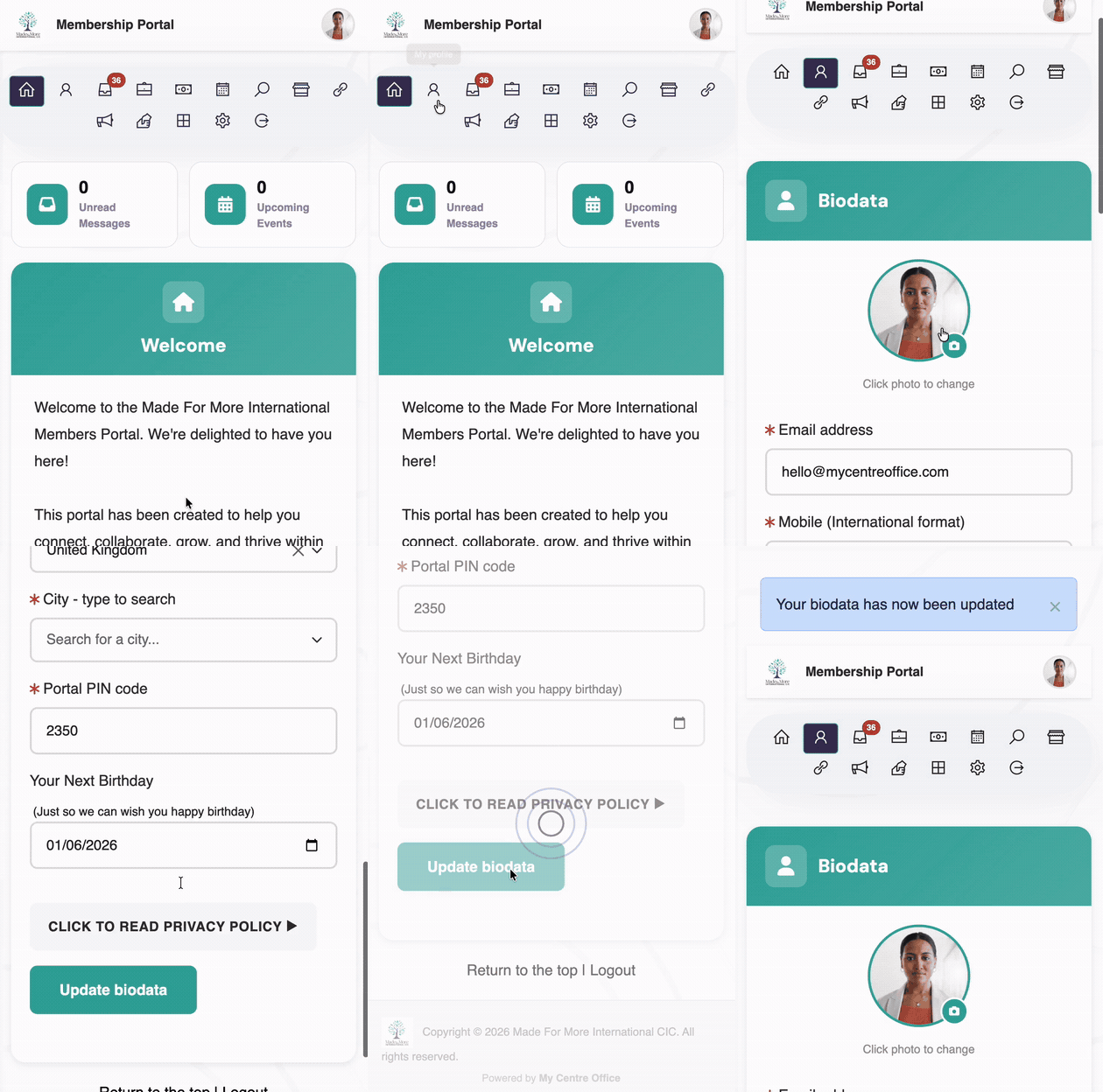
Depending on your organisation's settings, you may be able to edit your own biodata, or it may be read only.
6. My Profile: Professional
The Professional section has two parts: your current employment, and your business listing if you run one.
Current Employment
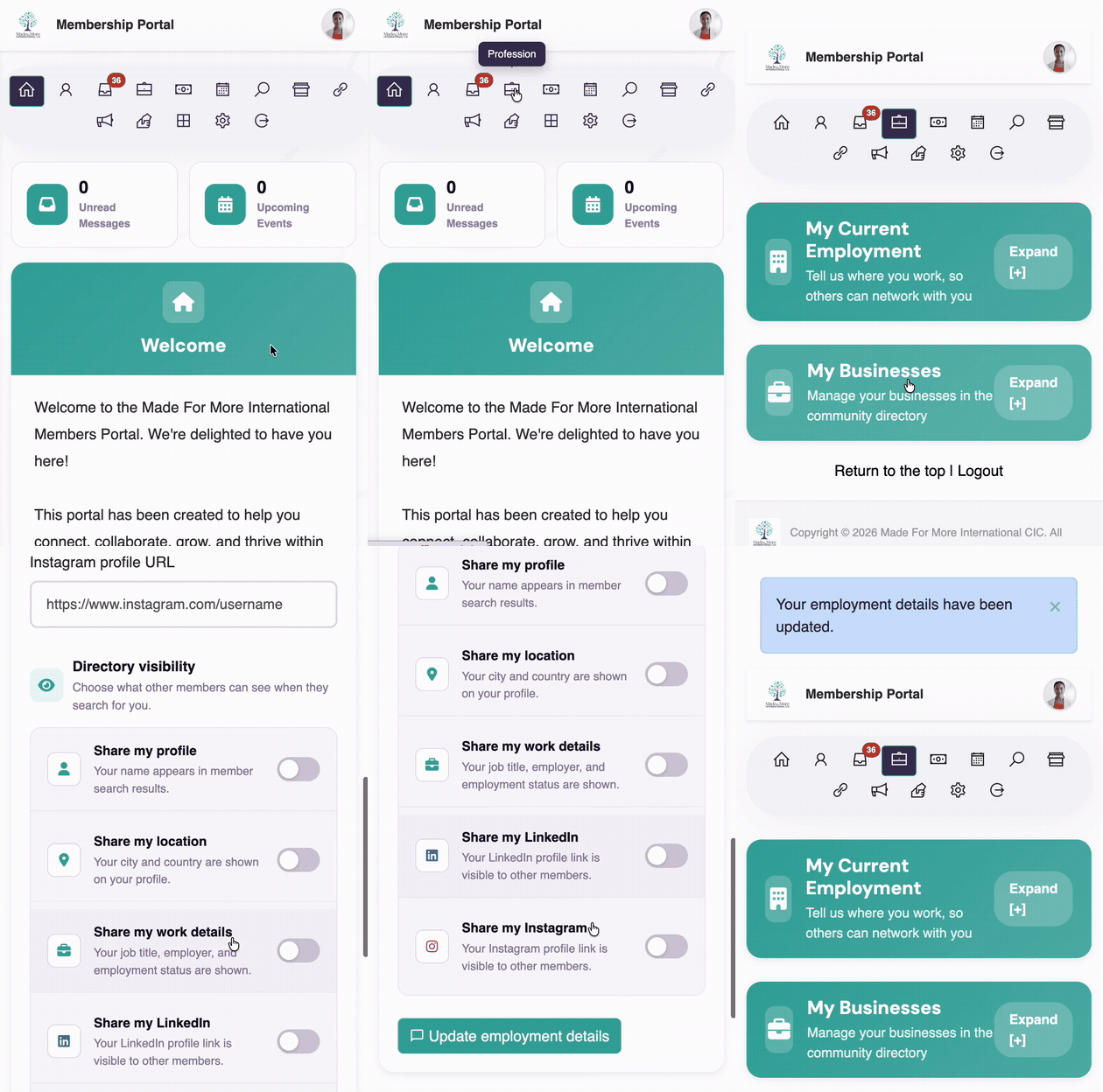
Update your job title, employer, and employment status. This information powers Member Search, allowing other members in your organisation to find you for professional networking. You are in full control of your visibility. You can choose whether you appear in search results at all, and which details are visible to other members when they find you.
Business Directory
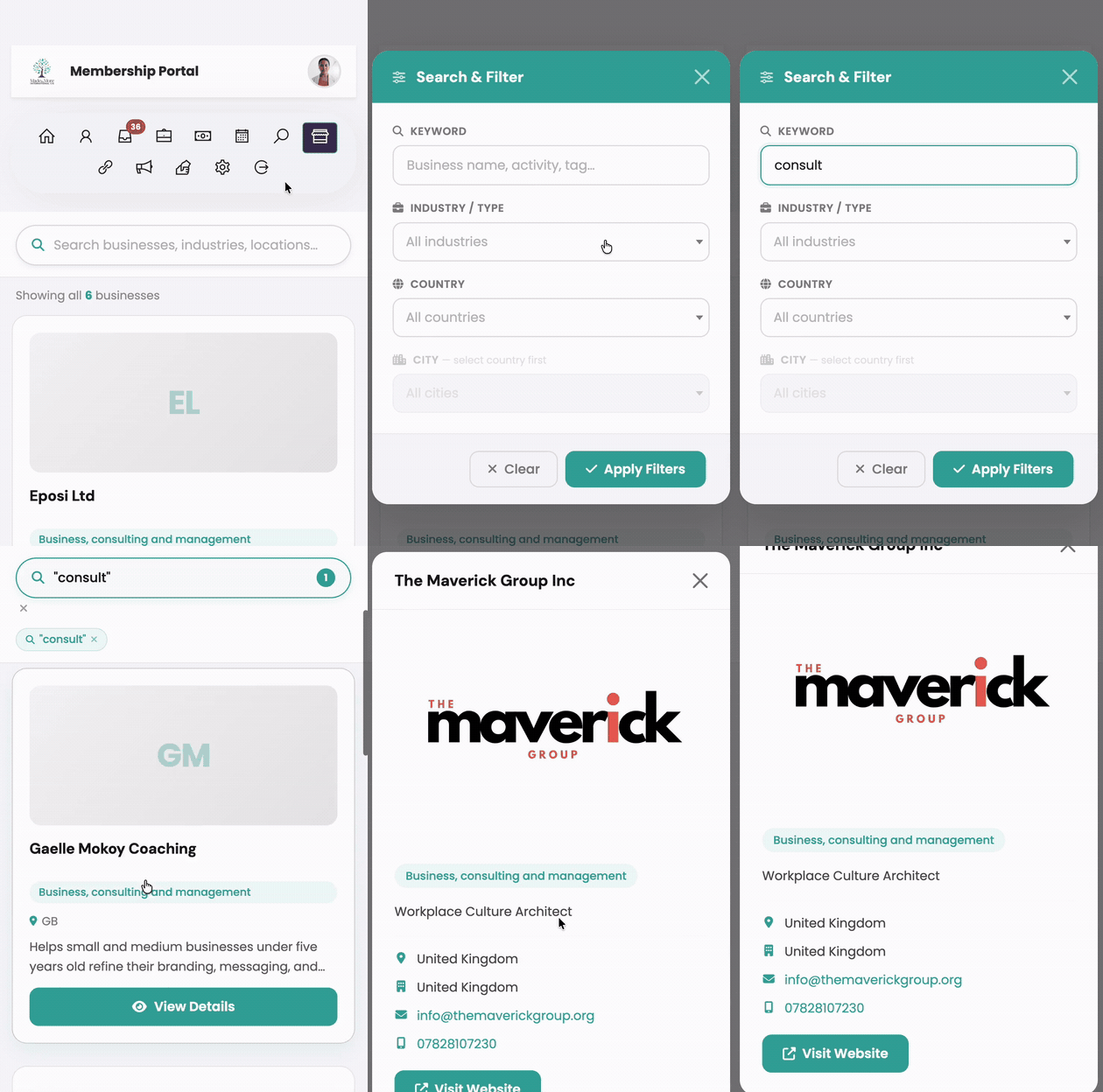
If you run a business, you can add it here. Adding your business takes just a few details: your business name, sector, a short description, your website, and your contact details. Once added, your listing becomes searchable in your organisation's Business Directory, giving your business visibility across the whole community and helping you attract new customers and leads from within your network. You can update your listing at any time, and you control whether it appears in search at all.
7. Payments
The Payments section shows your historical transactions with your organisation: invoices raised, amounts paid, and dates. If your organisation uses a dues or subscription model, you will also see your current balance and can make payments directly from the portal using the Pay Now option.
8. Inbox
Your inbox shows messages sent to you by your organisation through MyCo. Unread messages are indicated with a badge. You can read each message by tapping it. Messages open without taking you away from the portal.
9. Courses
If your organisation uses MyCo's Course Manager and you are enrolled on any courses, they appear here. You can see your registered courses, navigate through the content modules, and track your progress with a progress indicator. Once you complete all modules, a completion certificate is generated automatically and is available for you to download.
10. Homework
The Homework section shows any assignments your organisation has set for you, independent of any courses. You can submit your work as free text, as a file upload, or both, depending on what your organisation has configured. You can see the status of each submission, whether it is under review or has been marked.
11. Mentoring
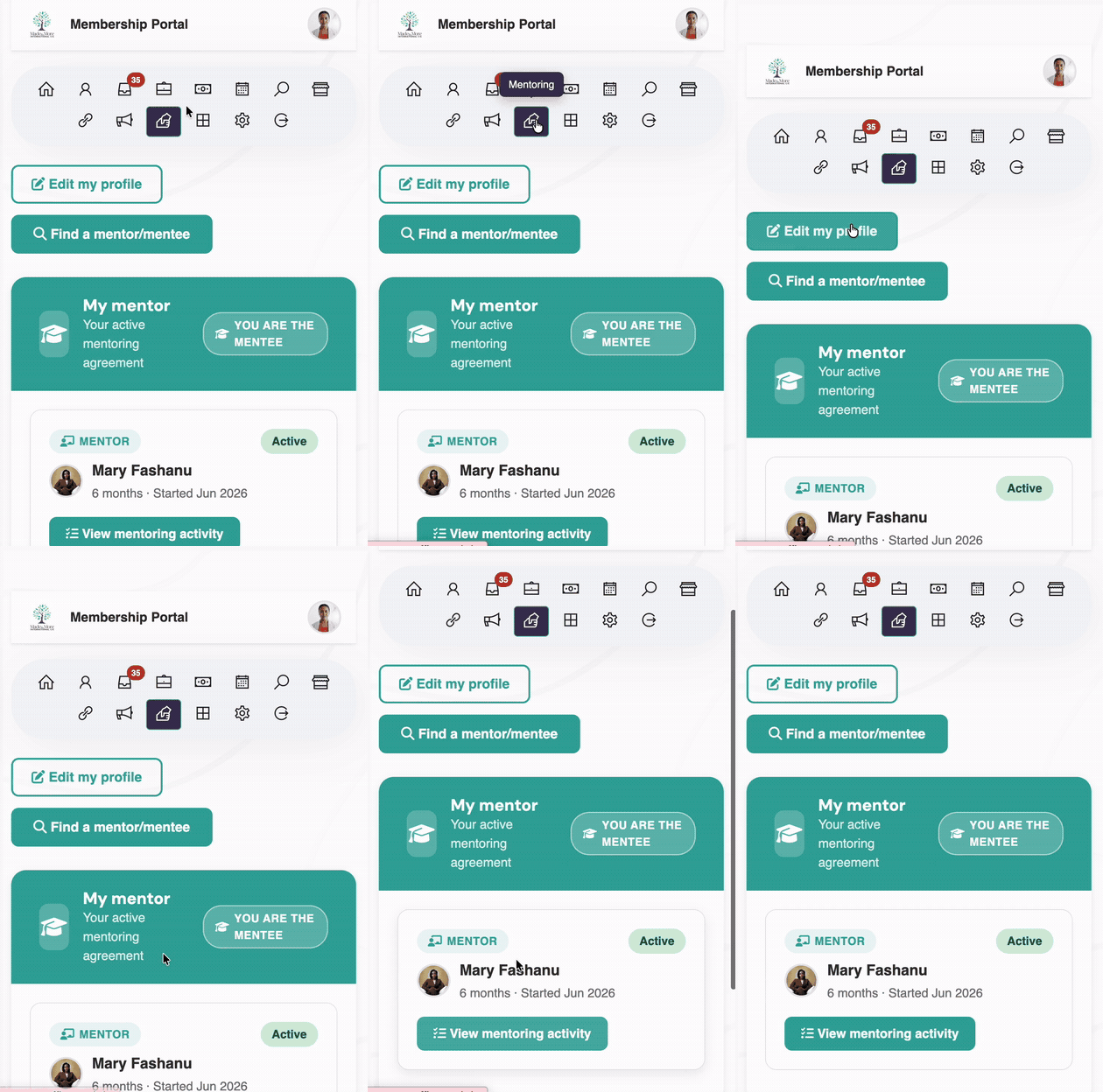
If your organisation has enabled the Mentoring feature, you can set up a mentor or mentee profile from this section, browse for matches within the community, and start mentoring relationships. Each relationship can have defined goals. Once a mentoring engagement is completed, a certificate is available for you to download to recognise the experience.
12. Elections
When your organisation runs an election or vote, the Elections section becomes active. You can view active ballot papers and cast your vote directly from the portal. Elections are time limited, so you will only see them while they are open.
13. Membership Card
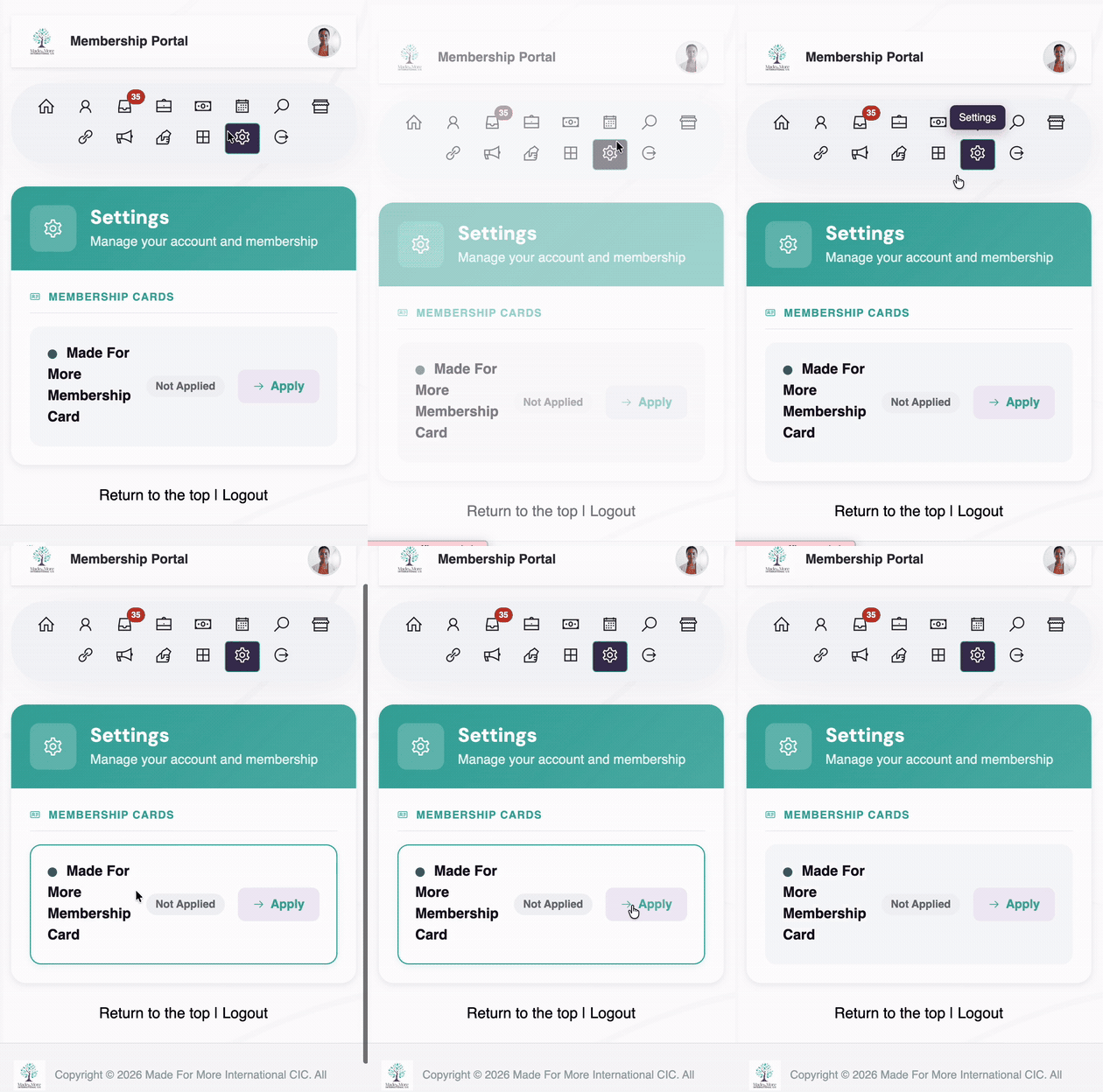
If your organisation has issued you a digital membership card, you can access it here. The card is available to download as a PDF and can also be added to Google Wallet for easy access on your phone. Apple Wallet is available on accounts where that integration has been configured.
14. Pages
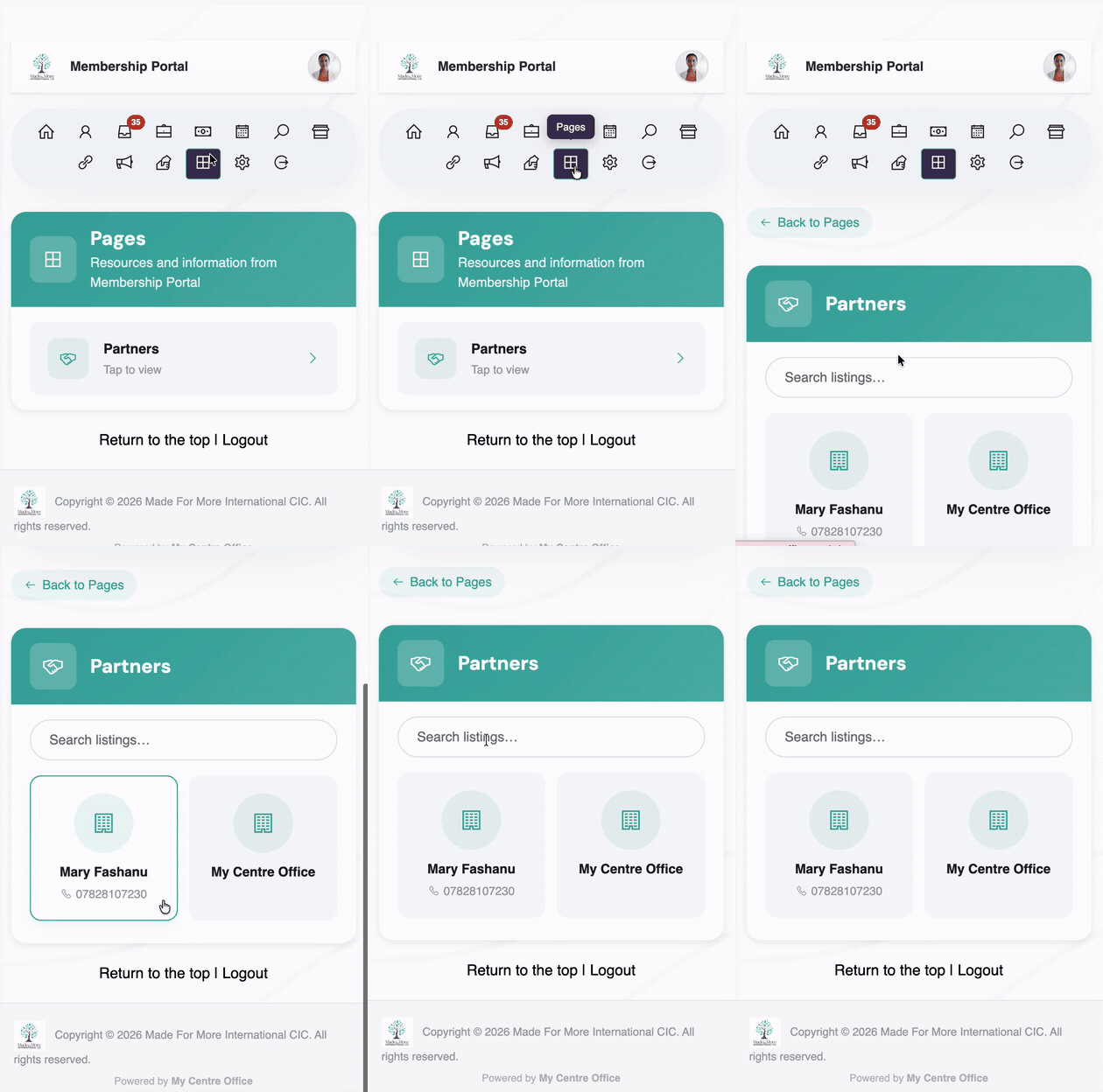
Pages is a content hub where your organisation publishes information and resources for members. This might include partner discounts, frequently asked questions, community guidelines, event information, or any other content your organisation wants to share. Tap any page title to open and read it. The Pages section only appears in your navigation when your organisation has published at least one page.
15. Member Search
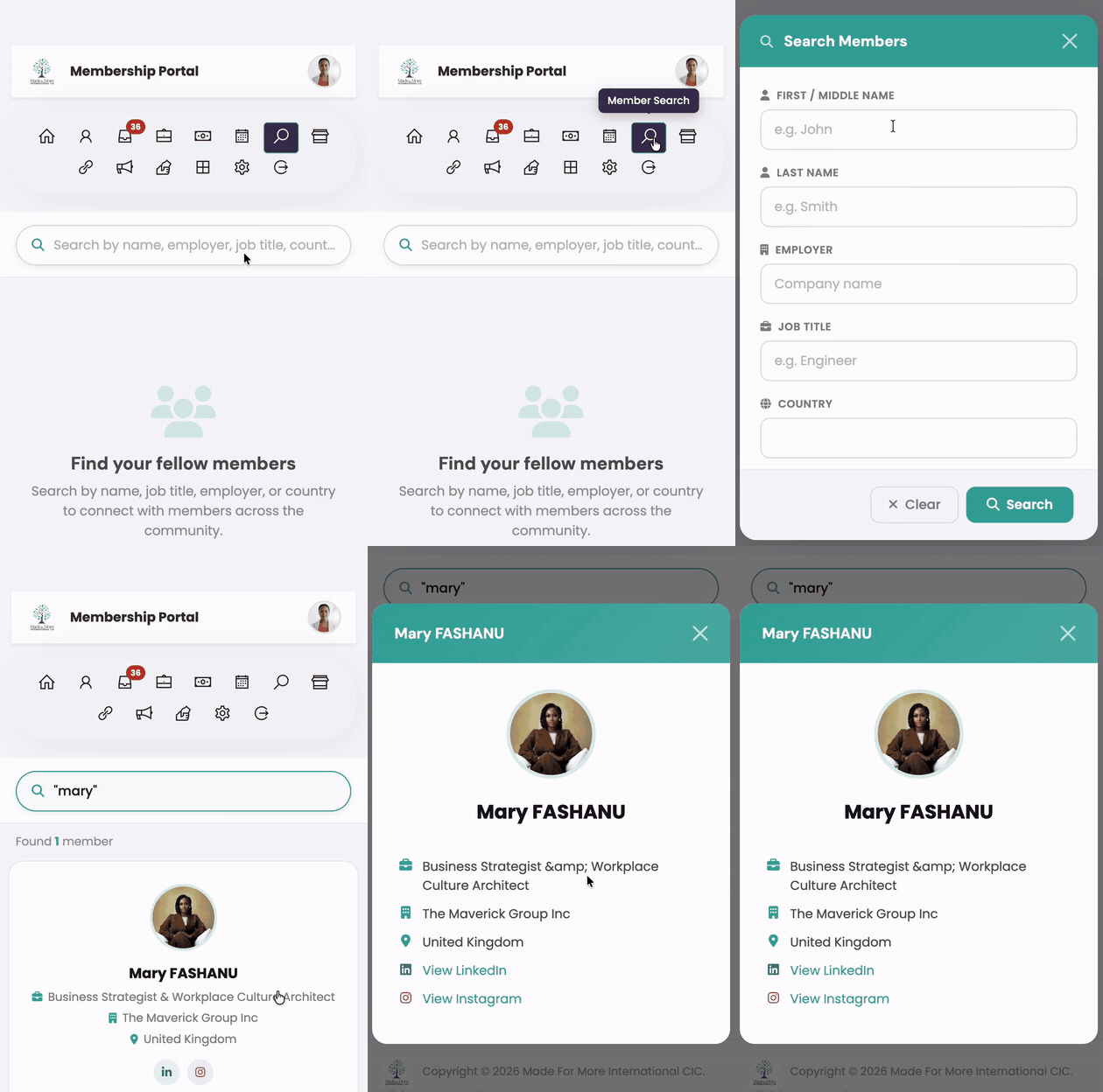
If your organisation has Member Search enabled, you can search for other members by name, location, profession, or other criteria. Member profiles appear in results only if those members have opted in to being searchable. You can use Member Search to identify potential connections, collaborators, or mentors within your community.
Customer Portal: your personal space within your organisation's community