How it works, a quick overview
1. Your To-Do Board
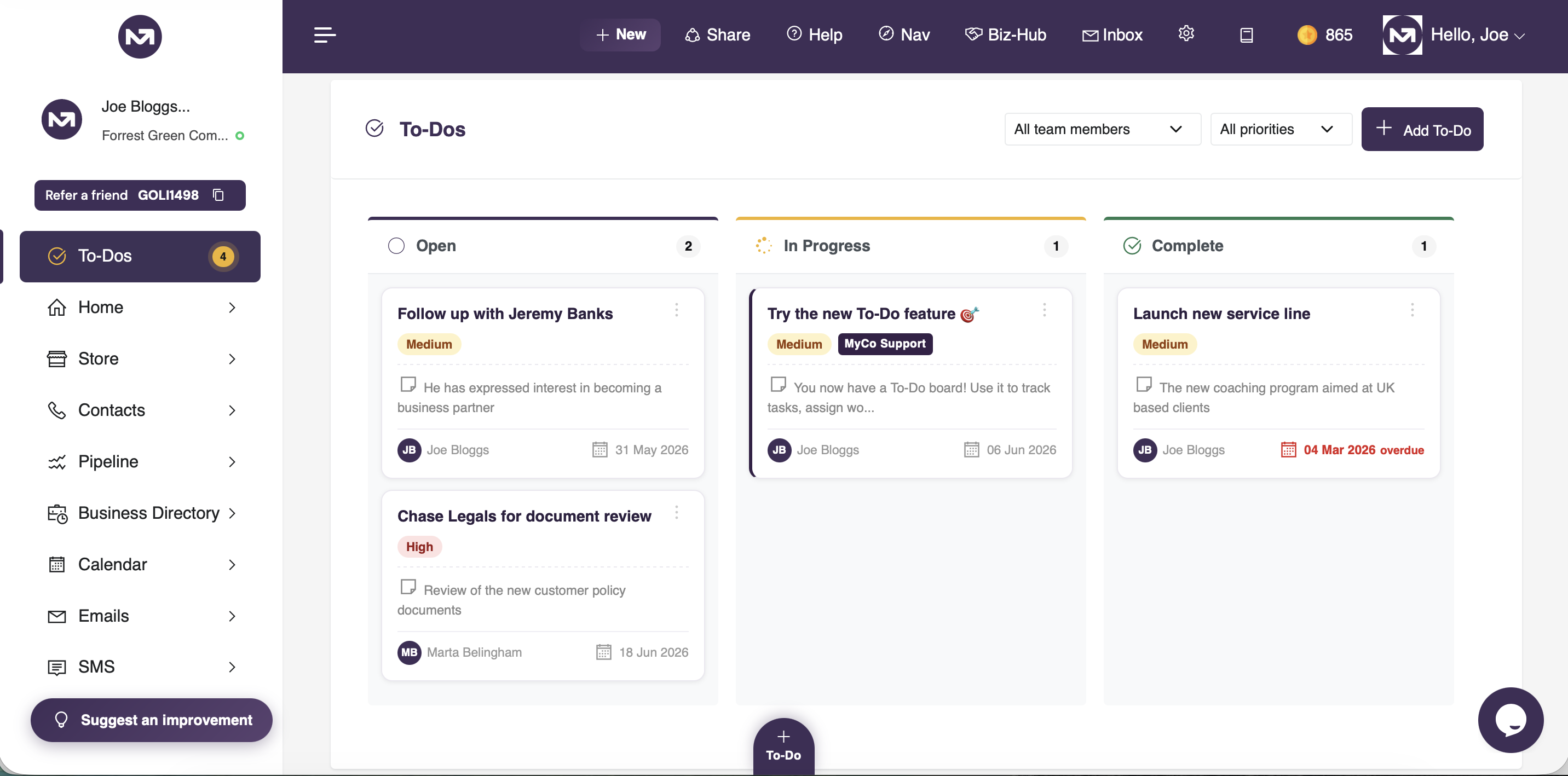
The To-Do board is accessible from the main navigation menu. It uses a three-column Kanban layout with Open, In Progress, and Complete columns. Every task you create or that is assigned to you appears here. Tasks are ordered by due date so the most urgent items always rise to the top. The board gives you an at-a-glance view of everything that needs attention across your organisation.
2. Creating a Task
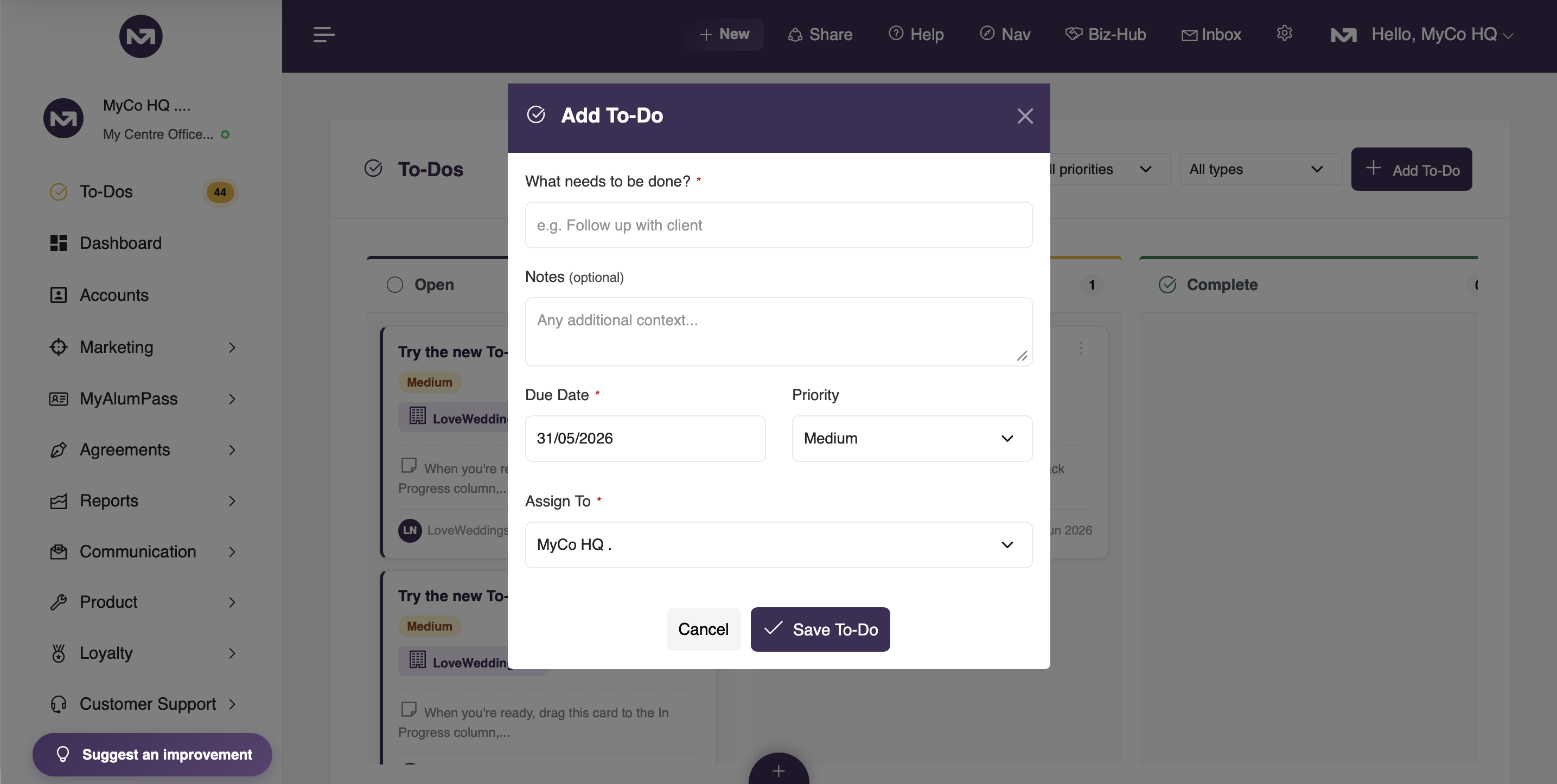
Click the Add To-Do button to create a new task. You will be asked to provide a title, due date, priority level (Low, Medium, or High), and the team member to assign it to. You can also add optional notes to provide further context. If the task relates to a specific record in MyCo such as a contact, invoice, service desk ticket, project, or calendar event, you can link it directly so the context is always close to hand.
3. Assigning Tasks
Tasks can be assigned to any user within your account. When you assign a task to a colleague, it appears on their board as well as yours. Admin users can see all tasks across the account. Other users only see tasks that are assigned to them or that they created, keeping each person's board focused and uncluttered.
Every user gets an email notification when a new task is assigned to them.
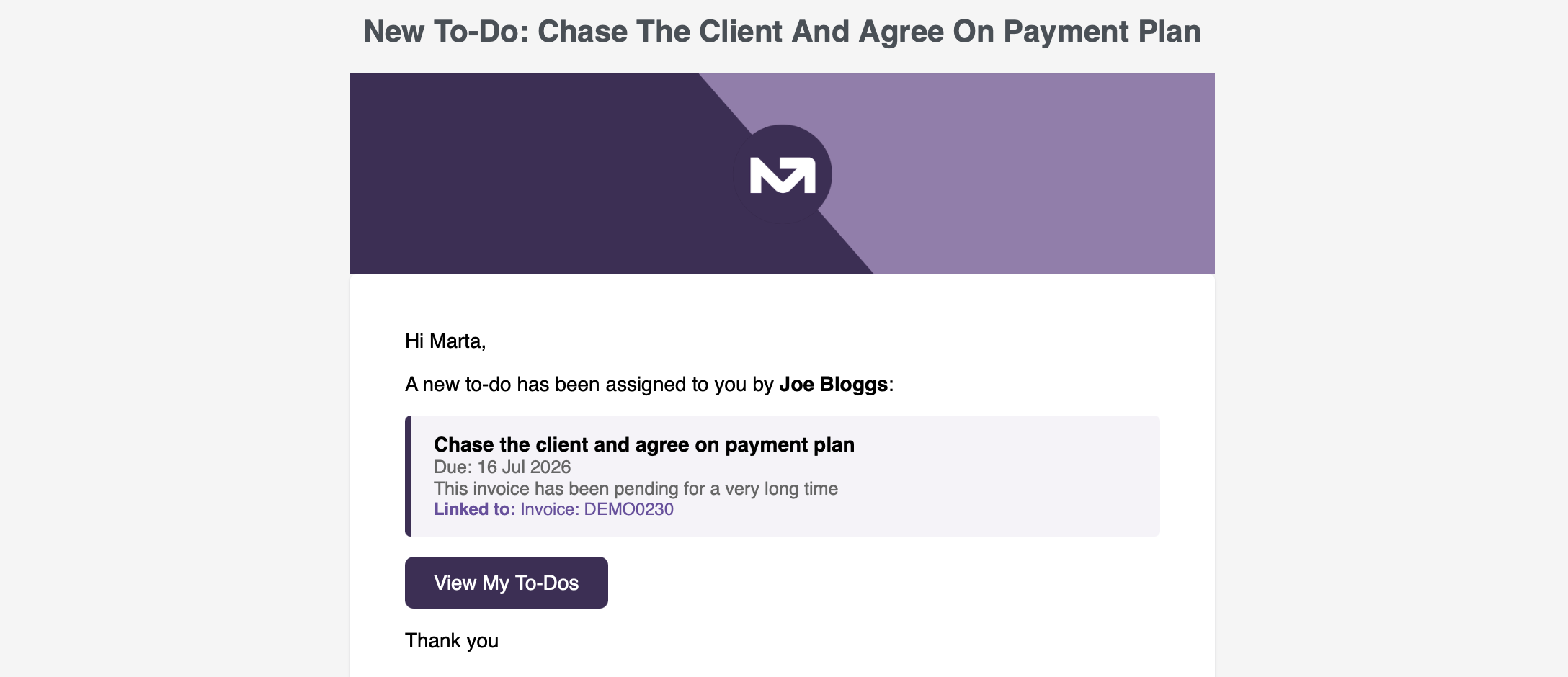
4. Moving Tasks Between Columns
As work progresses, tasks can be moved between the Open, In Progress, and Complete columns directly from the board. Simply use the status controls on the task card. The board updates instantly without a page reload.
5. Adding and Editing Notes
Each task has a notes field that can be updated at any time. Click into the notes area on a task card to add context, progress updates, or any relevant information. Notes are saved automatically so nothing is lost.
6. Linking Tasks to Records
When creating a task you can optionally link it to an existing record in MyCo. Supported record types include Contacts, HR Staff, Invoices, Service Desk tickets, Projects, and Calendar Events. Once linked, the task card displays the record label so the connection is always visible. This is particularly useful for follow-up tasks that arise from a specific client interaction or outstanding invoice.
7. The To-Do Badge
The navigation menu displays a live count badge next to the To-Do item showing how many open or in-progress tasks you have. The badge pulses with a gold glow so it is hard to miss. It updates automatically as tasks are completed or new ones are added.
8. Completing and Deleting Tasks
Move a task to the Complete column when the work is done. Completed tasks remain visible on the board for 7 days, so you retain a record of what has been accomplished. If a task is no longer needed, it can be permanently deleted from the board using the delete option on the task card.
9. Priority Levels
Each task is assigned a priority of Low, Medium, or High at the point of creation. Priority is visible on the task card and helps the team quickly identify what needs urgent attention versus what can wait.
To-Dos : keep your team organised, accountable, and moving forward within MyCo