
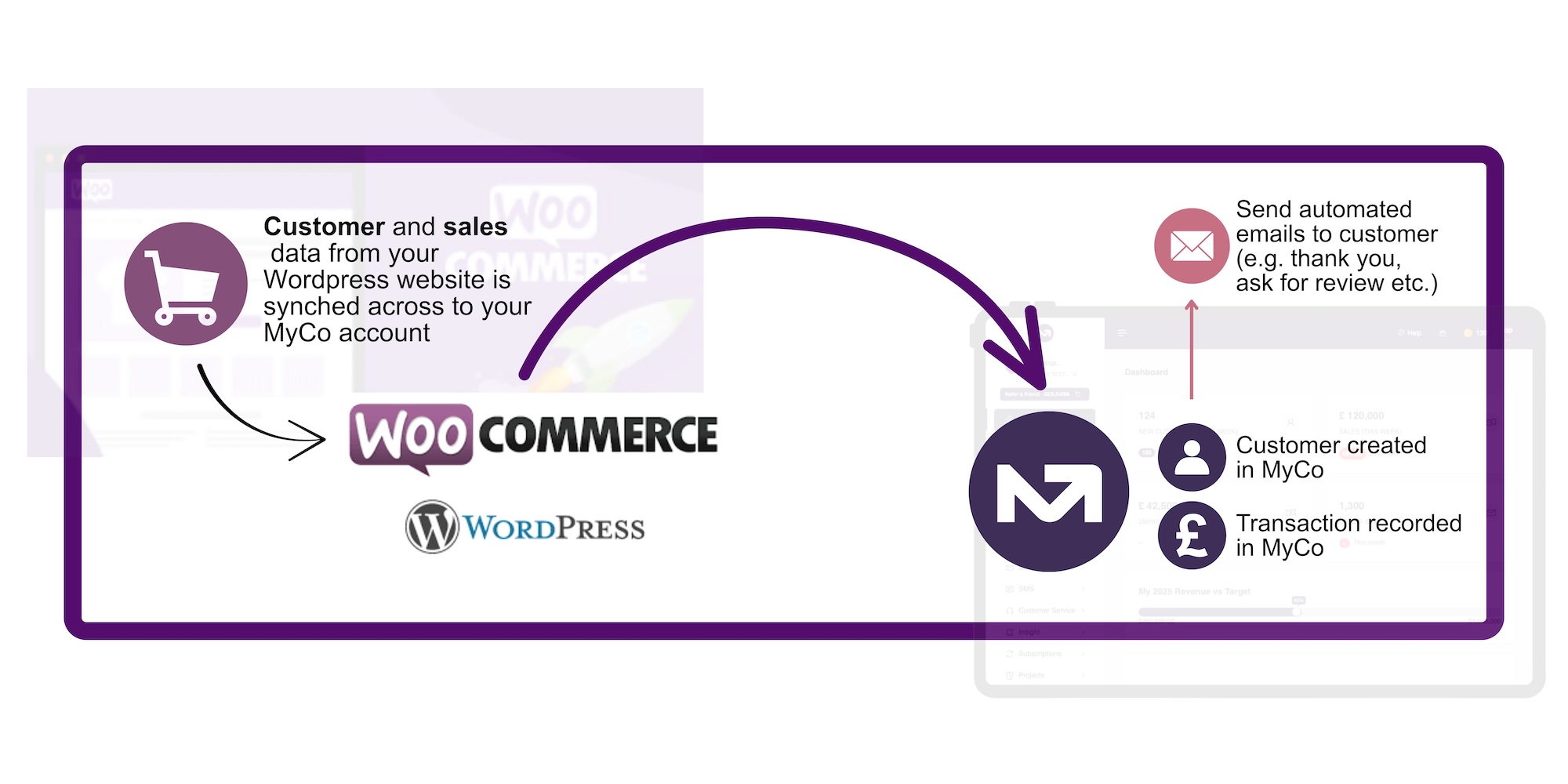
You can connect your WordPress website to MyCo so that key events like customer order creation and payments can automatically send data in MyCo. This keeps your customer data up to date and lets you send automated emails or SMS messages based on customer activity.
Supported Events from WordPress
Once MyCo is connected to your WordPress website, the following events are captured:
- Order created
- Payment completed
- Payment refunded
What Happens After Integration?
When new data flows from your website, MyCo doesn’t just store customer details, it can also trigger automated communications.
The two key automation triggers are:
- Customer Added: This is applicable for walk-in customers you manually added to your MyCo database.
- Transaction API Added: This is applicable for order, payment, or refund recorded from the e-commerce website.
If you’d like your customers to receive a thank-you email after placing an order, you can set “Transaction (API) added” as the trigger in MyCo. This same setup can also work for follow-up reminders, order confirmations, or feedback requests.
How to Set Up Automated Emails on MyCo for WordPress Orders
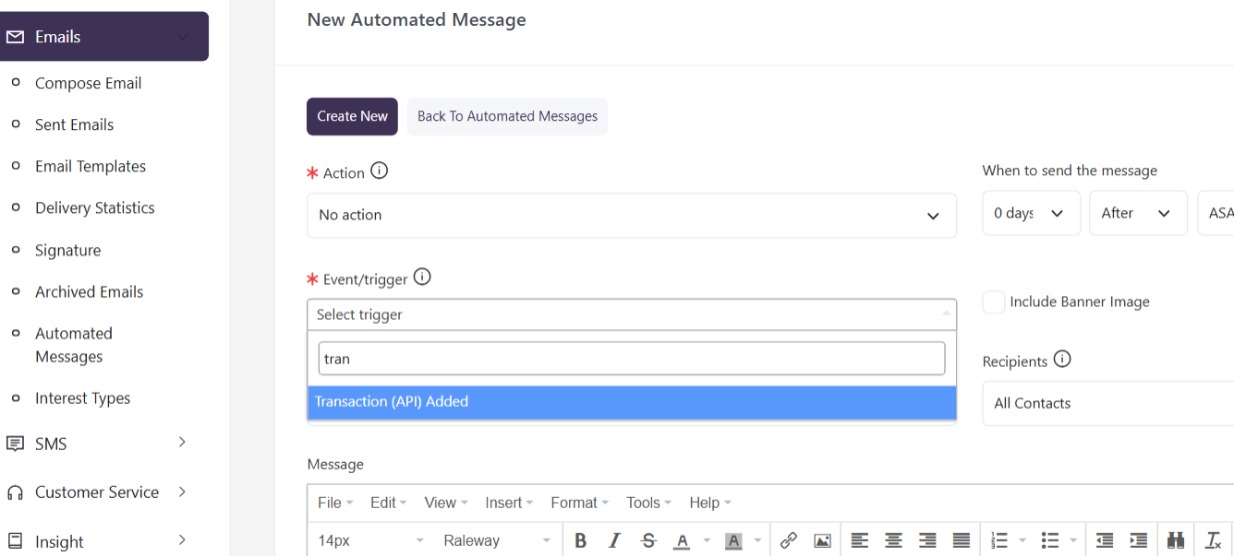
- From the MyCo Menu, click on Email.
- Select Automated Email.
- Open the drop-down under Action and choose whether to send an Email or SMS to your contacts.
- Choose When to send the message.
- Select Event/Trigger and choose Transaction API Added.
- Enter a subject/description for your message.
- Type the email body.
- Select your recipients: All Contacts, New Contacts, or Returning Contacts.
- Click Update to save your automation. See screenshot below;
How to Connect MyCo to Your WordPress Account
MyCo can connect to the Wordpress Ecommerce system, called Woocommerce. Please follow the instructions here to create a webhook: https://developer.woocommerce.com/docs/best-practices/urls-and-routing/webhooks/
Using the parameters below:
- Name: The name is auto-generated as "Webhook created on [date and time of creation]" as a standard to facilitate creation. Change the name to something else.
- Status: Set to Active (delivers payload), Paused (does not deliver), or Disabled (does not deliver due delivery failures).
- Topic: Indicate when the webhook should be triggered - Order Created, Product Deleted, or Customer Updated. There are also Action and Custom options.
- Action Event: This option is available when the Topic is a WooCommerce Action, such as woocommerce_add_to_cart for when customers add products to the shopping cart.
- Custom Topic: This option is for advanced users only. It's possible to introduce new, customized topics with the help of woocommerce_webhook_topic_hooks filter.
- Delivery URL: URL where the webhook payload is delivered. http://app.mycentreoffice.com/wp-post?u=insert_user_code . You can get your user_code from your MyCo system settings page. It will be your API key.
- Secret: The Secret Key generates a hash of the delivered webhook and is provided in the request headers. This defaults to the current API user's consumer secret, if nothing is entered.