How it works, a quick overview
1. Set Up a Mentoring Profile
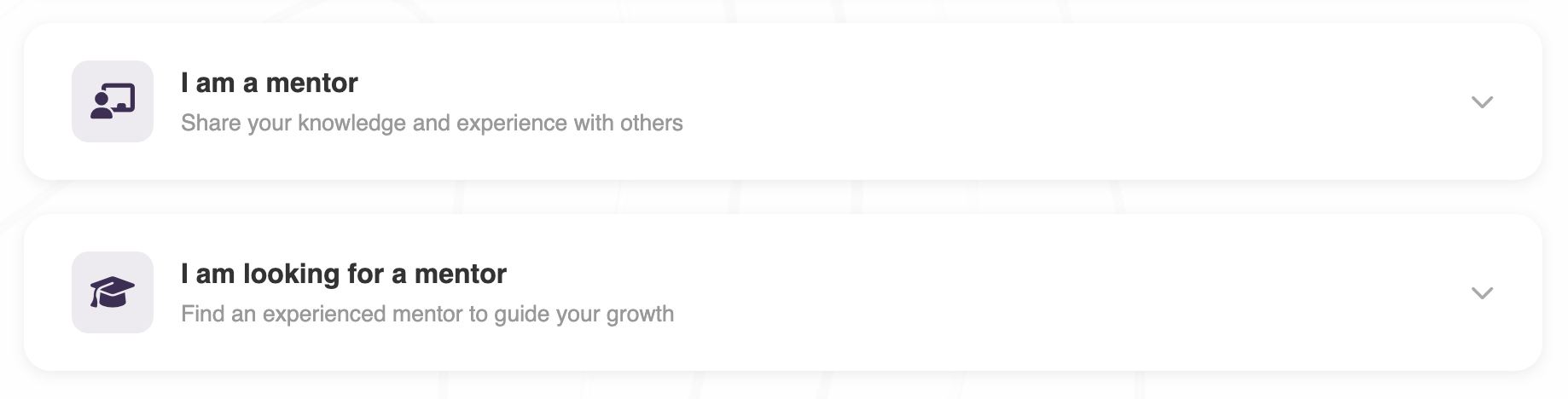
Before a member can participate in mentoring, they must set up a mentoring profile from within the portal. The profile has two sections, I am a mentor and I am looking for a mentor, and a member can set up one or both. Each section has an availability toggle that controls whether the member appears in the directory for that role. Members select the areas they can mentor in or want to develop in from a shared interest taxonomy, and write a short profile bio. Both sections are independent, so a member can be simultaneously open to mentoring others while also seeking a mentor for themselves.
2. Confirm Contact Details
As part of setting up their profile, members are asked to confirm their email address and LinkedIn profile URL. These details will be shared with their mentor or mentee once an agreement becomes active, so members are reminded to ensure they are up to date before proceeding. No contact details are shared at the browsing or request stage. Sharing only happens once both parties have accepted.
3. Browse the Mentoring Community
Once a profile is set up, members can browse the full mentoring community from the Find a mentor/mentee page. The directory shows two sections: members who are available as mentors, and members who are looking for a mentor. Each card shows the person's name, job title, organisation, LinkedIn link, a short bio, and the interest areas they have selected. Results are automatically sorted by shared interests so members with the most overlap appear first. A filter panel allows further refinement by specific topic or category. Each card is clearly labelled as either Mentor or Mentee so the role is always unambiguous.
4. Send a Mentoring Request
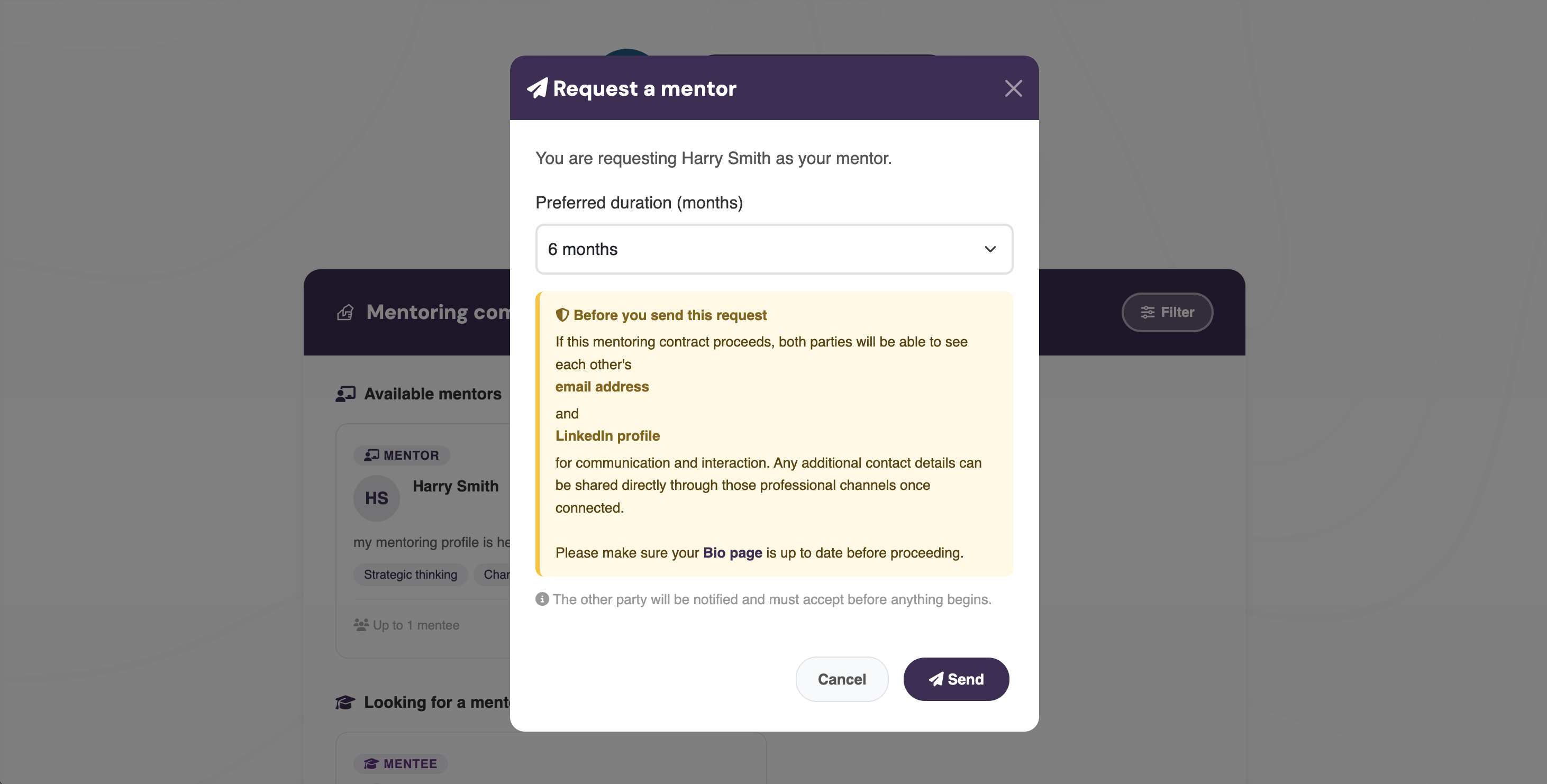
From any card in the browse directory, a member can send a mentoring request. Mentor cards show a Request button and mentee cards show an Offer to mentor button. Before confirming, members are shown a notice explaining that if the agreement proceeds, both parties will be able to see each other's email address and LinkedIn profile. Members are also reminded to check their Bio page is up to date before sending. Once a request is sent, the card displays Requested and the button is disabled to prevent duplicate requests. A completed past agreement with the same person does not block a new request, so repeat relationships are fully supported.
5. Accept or Decline a Request
The receiving party sees the request on their mentoring dashboard under Pending requests, showing the requester's name, the proposed role, the duration, and how long ago the request was sent. They can accept or decline directly from the dashboard. If they sent the request themselves, they see an Awaiting their response note instead. Once accepted, the agreement becomes active and both parties gain access to each other's contact details.
6. Goals are Set by the Mentor
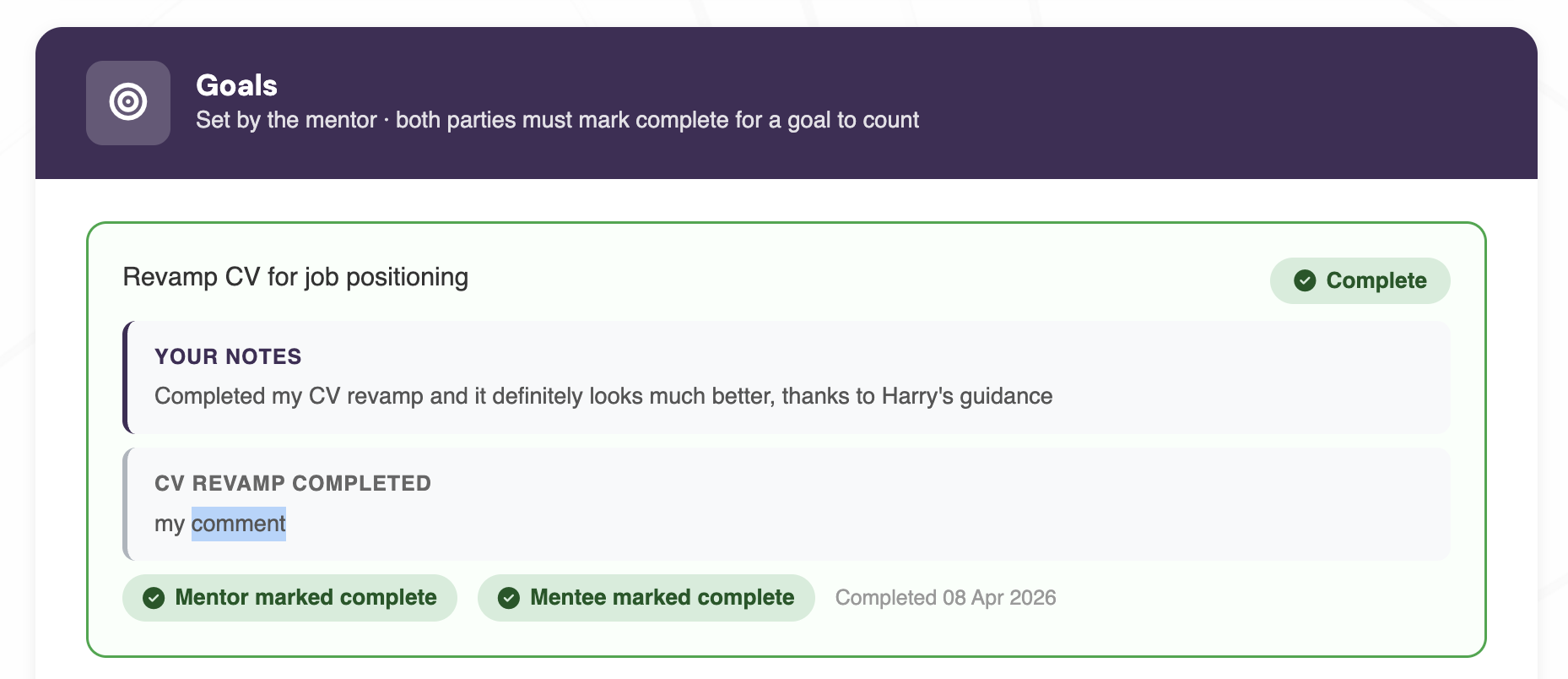
Once an agreement is active, the mentor sets the goals for the programme. Goals appear on the View Mentoring Activity page, which both parties can access from their dashboard. Each goal has a description that the mentor can edit at any time while the agreement is active. Both the mentor and mentee can add notes to each goal. Both parties must mark a goal as completed before it counts, ensuring mutual agreement on what has been achieved. Neither party can unilaterally close a goal.
7. Marking Goals as Completed
When both parties are satisfied that a goal has been met, each clicks Mark as completed on their own view of the goal. Once both have done so, the goal is stamped with a completion date and marked with a green Complete badge. A progress bar on both the dashboard and the activity page reflects how many goals have been completed out of the total.
8. Agreement Completion and Certificates
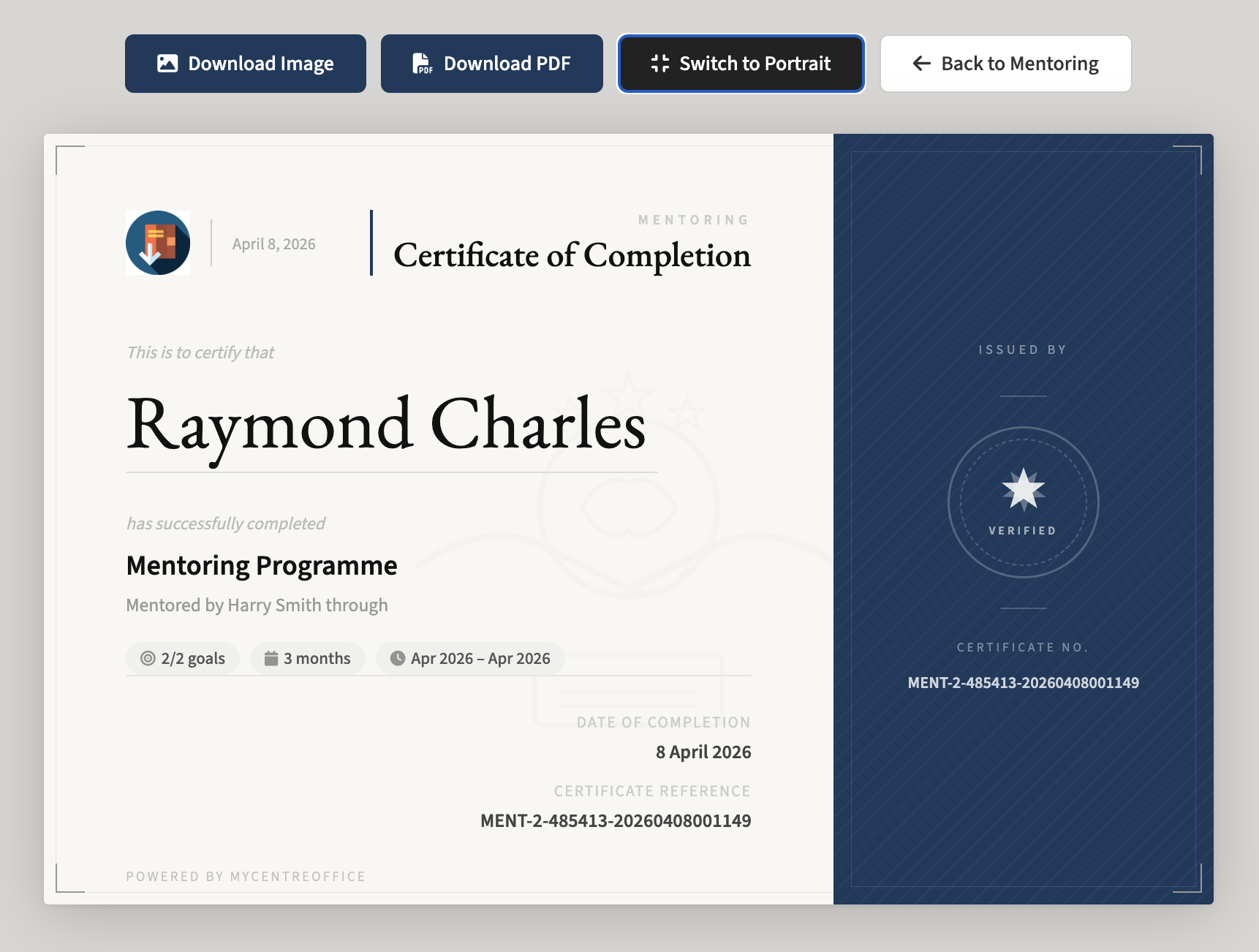
There is no separate button to close a mentoring agreement. Once every goal has been marked as completed by both parties, the agreement closes automatically and a certificate is issued to both the mentor and the mentee. The mentor receives a Mentor Recognition certificate and the mentee receives a Programme Completion certificate. Each certificate shows the recipient's name, the other party's name, the number of goals achieved, the programme duration, and the date range. Certificates can be downloaded as a PNG image or as a PDF.
9. Viewing Mentoring Activity
Both parties can access the full activity log for any agreement by clicking View Mentoring Activity from their dashboard. This page shows the agreement overview including start date, expected end date, goals progress, and programme status, followed by each goal with its description, notes from both parties, and the completion status of each party. For completed agreements, the certificate download button appears prominently at the top of the page.
10. Mentoring History
Completed agreements are accessible at any time from the Mentoring history section at the bottom of the mentoring dashboard. Each entry shows the other party's name, the role each played, the duration, the completion date, and the number of goals achieved. If a certificate has been issued, a View certificate button appears directly on the history card, making it straightforward to retrieve and download past certificates without navigating into the activity log.
Mentoring : peer to peer growth, tracked and recognised within MyCo