The MyCo Service Desk is a customer support tool built into your MyCo account. It allows your customers and members to submit support requests directly to you, and gives your team a structured way to track, manage, and respond to every request in one place.
This is your organisation's own service desk. It is entirely separate from MyCo's own support team. When your customers submit a request through your service desk, it comes to you, not to MyCo.
What is the Service Desk for?
The Service Desk is designed to replace informal support channels like WhatsApp messages, personal emails, and phone calls that are hard to track and easy to lose. Instead of your customers chasing you and your team chasing each other, every request is logged, tracked, and visible in one place.
Common uses include:
- Handling customer enquiries about your products or services
- Managing complaints with a clear audit trail
- Processing requests from members of your association or organisation
- Capturing and responding to feedback in a structured way
- Providing ongoing support to clients on retainer or service plans
How does a customer submit a request?
Every MyCo account has a unique Service Desk link. You can share this link on your website, in your email signature, on social media, or anywhere your customers can find it. No login is required for your customers to submit a request.
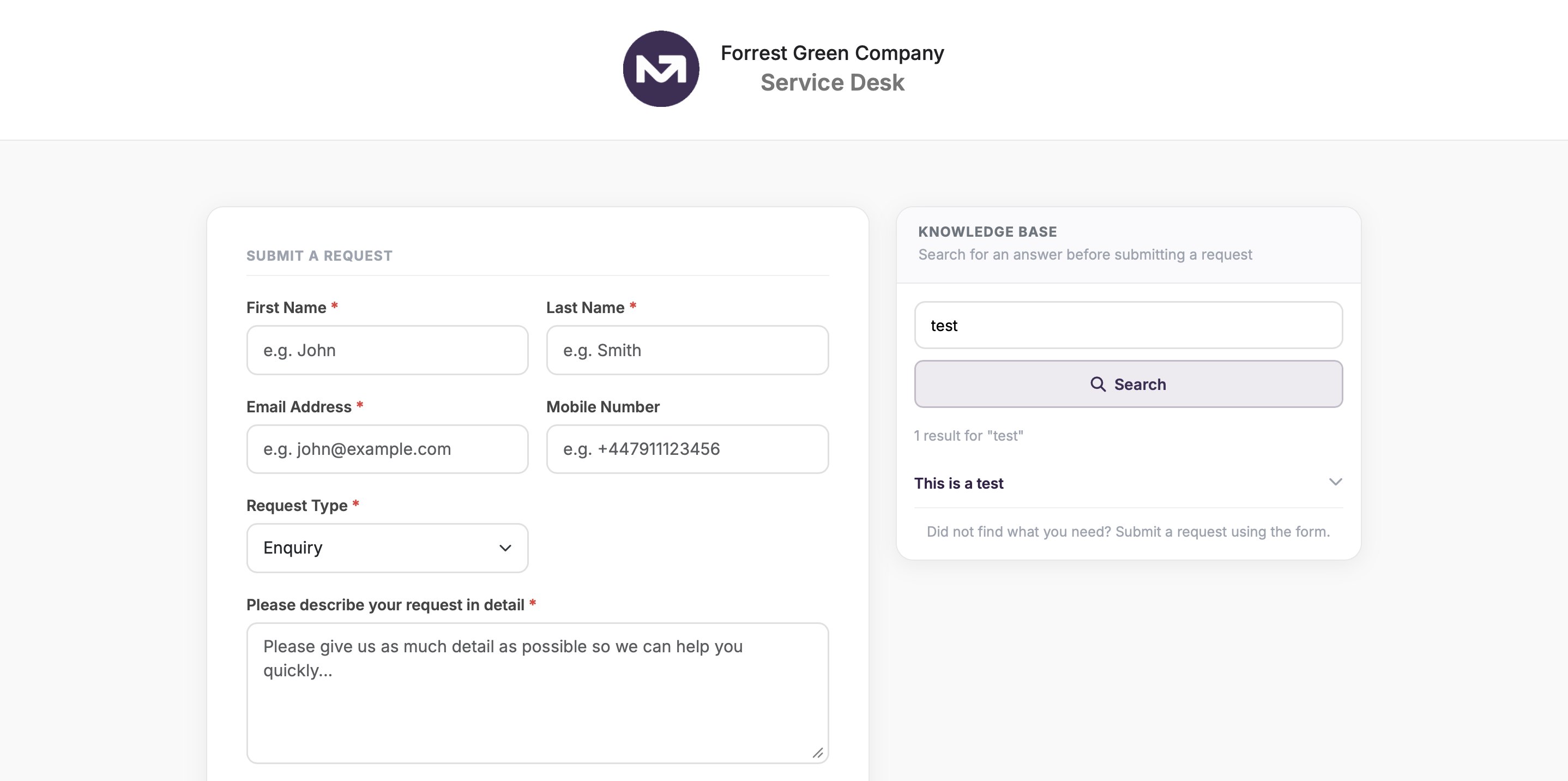
When a customer opens the link they will see a clean submission form where they can:
- Enter their name, email, and contact details
- Select the type of request: Enquiry, Request, Complaint, or Feedback
- Choose a category if you have set up service categories
- Describe their issue or question in detail
What happens after a request is submitted?
As soon as a request is submitted, several things happen automatically:
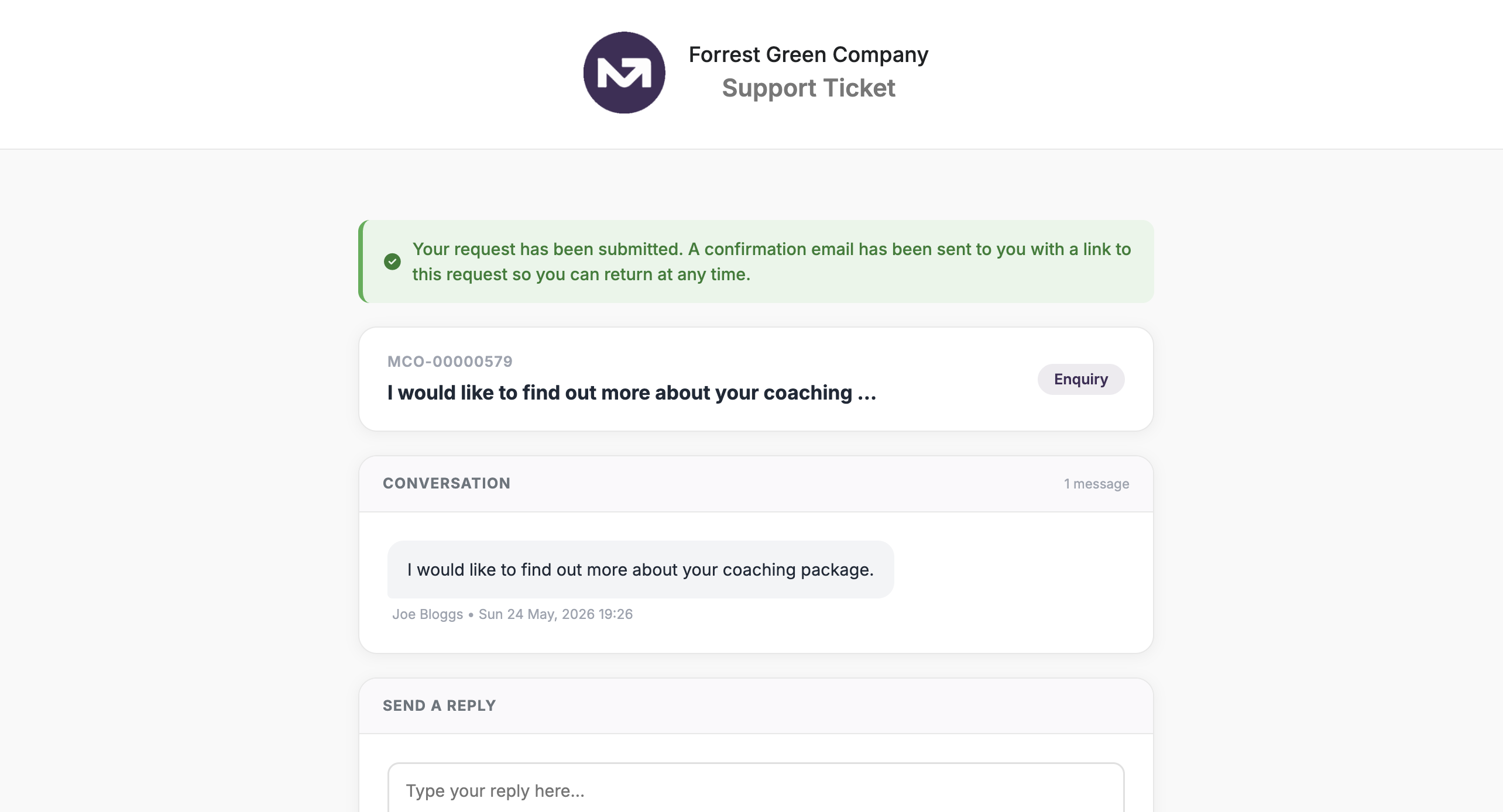
- A ticket is created in your Service Desk with a unique reference number (e.g. MCO-00000042)
- The customer is redirected to their personal ticket page where they can see their submission
- A confirmation email is sent to the customer with their ticket reference and a link back to their ticket page
- Your team is notified of the new request
How does my team manage requests?
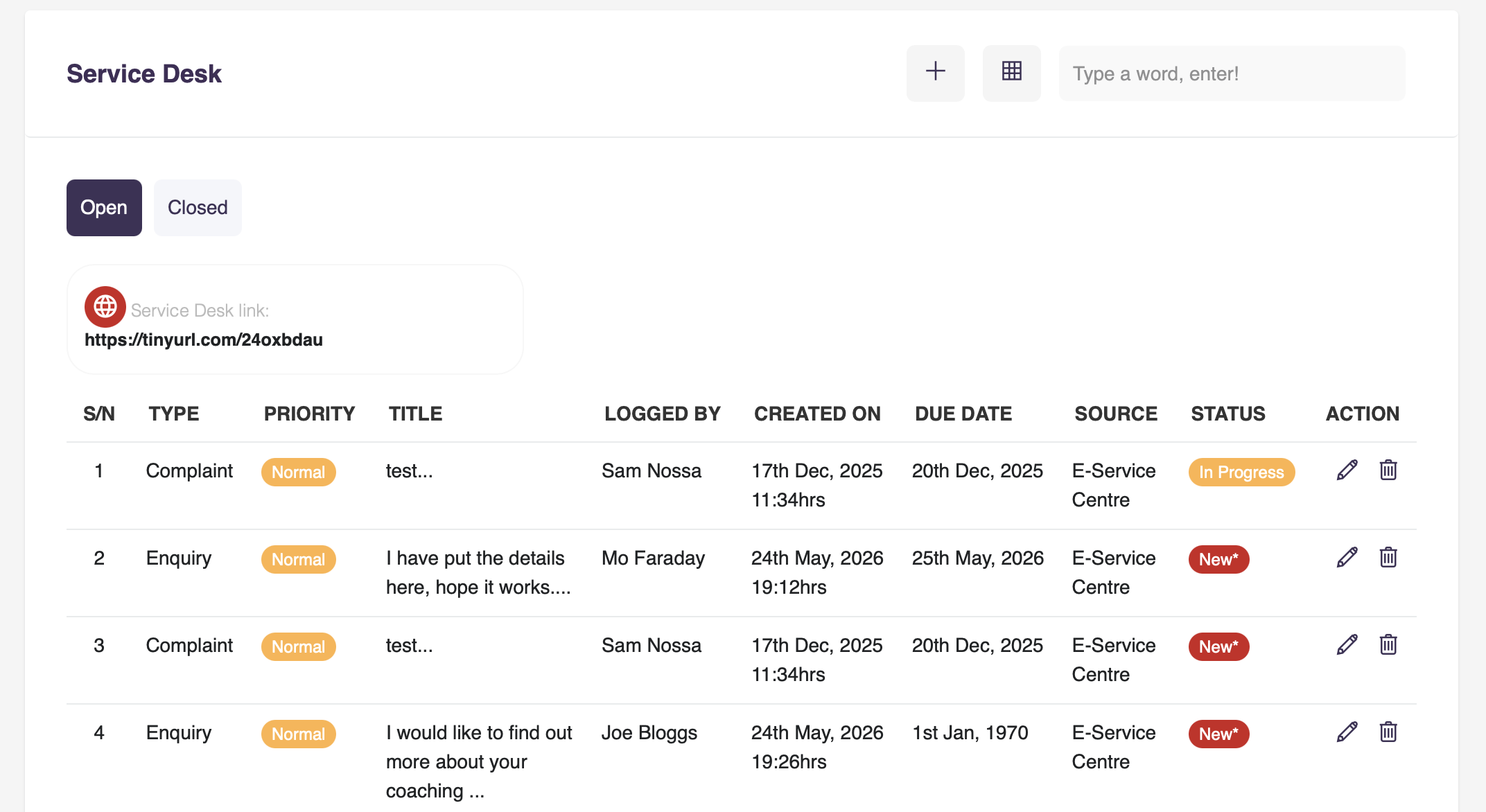
All incoming requests appear in your Service Desk list under Menu and then Service Desk. The list shows open and closed tickets with their priority, type, status, and who submitted them.
Clicking on any ticket opens the full ticket view, which has two panels:
- Left panel: ticket details including status, priority, due date, customer information, and assignment. You can assign the ticket to a specific team member and update the status from here.
- Right panel: the full conversation thread between your team and the customer, with a reply box at the bottom.
How does the conversation thread work?
The conversation thread is the heart of the Service Desk. It works like a messaging thread where your team and the customer can exchange messages back and forth, with the full history always visible to both sides.
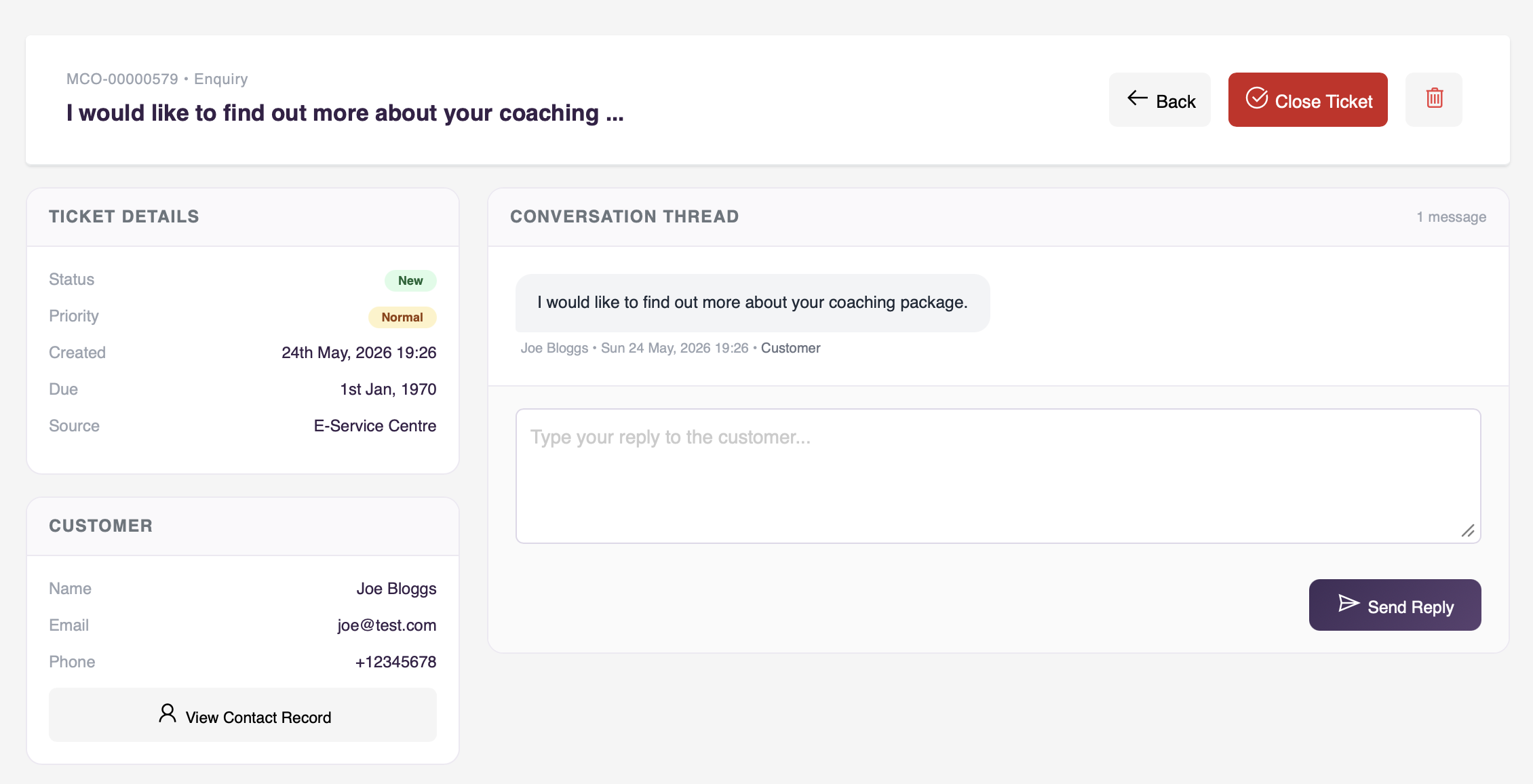
Agent messages appear on the right side of the thread in your brand colour. Customer messages appear on the left in grey. Every message shows who sent it and when.
When a customer wants to reply, they click the link in their notification email which takes them to their personal ticket page. They can read the full conversation and type their reply directly. No account or login is needed.
Once a ticket is closed, the thread is still visible to both your team and the customer, but no further replies can be added. If the customer needs further help they can submit a new request.
What are the different request types?
When a customer submits a request they choose one of four types:
- Enquiry: a general question about your products, services, or organisation
- Request: a specific ask such as a booking, a document, or an action from your team
- Complaint: an expression of dissatisfaction that requires resolution and follow-up
- Feedback: a comment or suggestion about their experience with your organisation
What are Service Plans?
Service Plans allow you to define different response time expectations for different customer groups. For example, premium clients might have a one business day response commitment while standard clients have three days.
Each plan can set separate response targets for enquiries, requests, complaints, and feedback. When a customer submits a request, if they are on a service plan the due date is calculated automatically based on their plan.
Service Plans are managed under Menu and then Service Desk and then Service Plans.
Can I add my own FAQs to the knowledge base?
Yes. You can build a knowledge base of frequently asked questions that appears in the search panel on your public service desk page. When a customer types a keyword, matching FAQs appear instantly so they can self-serve before submitting a ticket.
To manage your FAQs go to Menu and then Service Desk and then My FAQs. You can add as many questions and answers as you like, and tag each one with keywords to improve search results.
How do I find my Service Desk link?
Your Service Desk link is displayed at the top of the Service Desk list page under Menu and then Service Desk. Copy it and share it wherever your customers can find it — your website, email footer, WhatsApp status, or social media profiles.
Important note
The MyCo Service Desk is a tool for you to provide support to your own customers. It is not connected to MyCo's own support team. If you need help with your MyCo account, please contact MyCo directly through the usual support channels.